Notification Bar
A notification bar is a slim, full-width bar that appears at the top or bottom of the page. It is the least intrusive of the three campaign types in ConvertForce, making it ideal for messages that need constant visibility without interrupting the browsing experience.
Common uses include site-wide sale announcements, free shipping notices, discount codes, cookie compliance messages, product launch promotions, and seasonal offers.
Creating a Notification Bar
- Navigate to ConvertForce → New Campaign.
- Enter a campaign name.
- Under Display Type, select Bar.
- Choose a pre-designed template from the pattern library or start from a blank canvas.
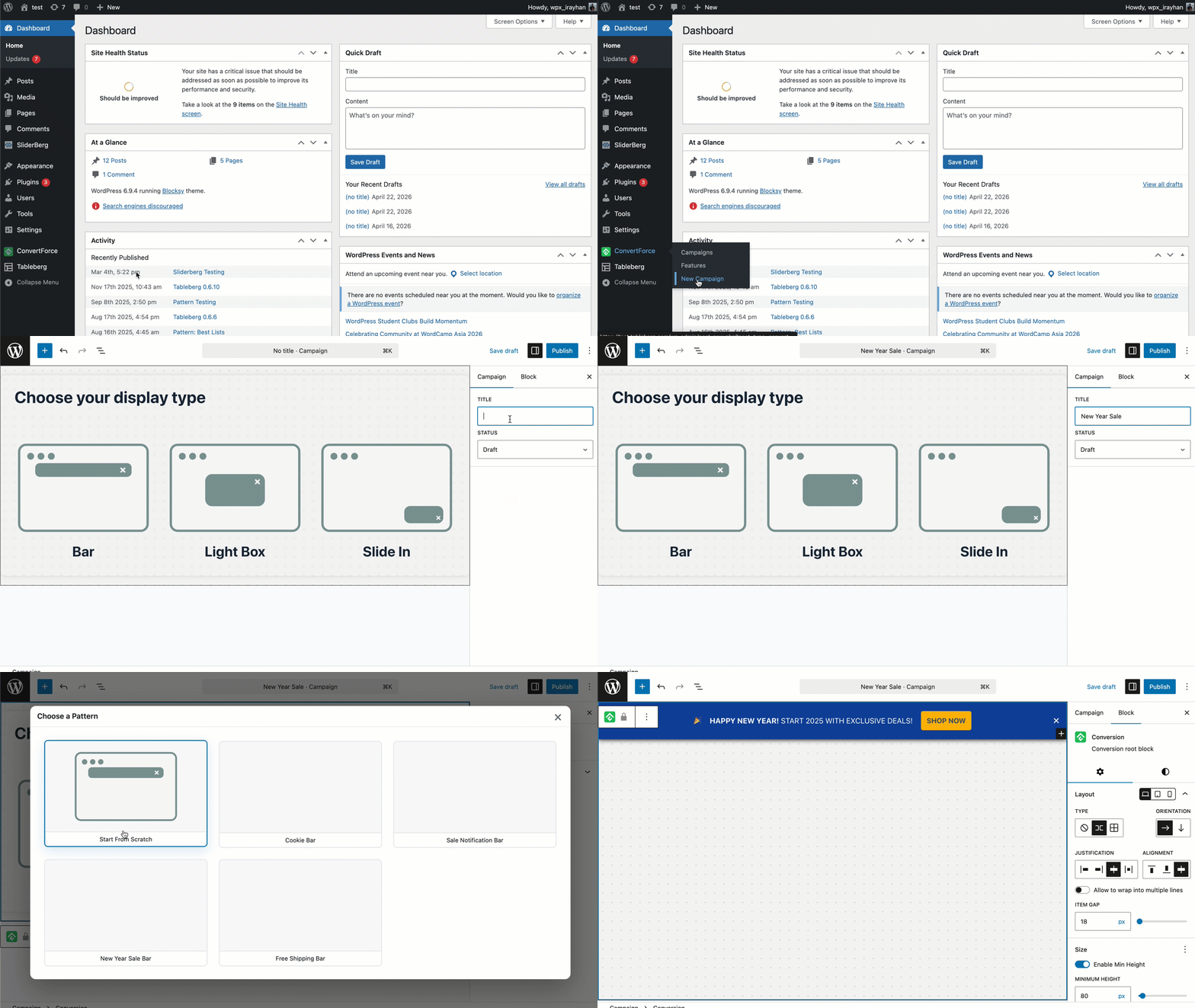
The campaign opens in the WordPress block editor, where the notification bar can be designed using standard Gutenberg blocks — paragraph, button, heading, image, and more.
Each element inside the bar — text, buttons, images — can be selected and customized individually using the standard block editor controls in the Block tab.
Layout Settings
Layout settings are found in the Block tab when the root block is selected, under the Settings tab.
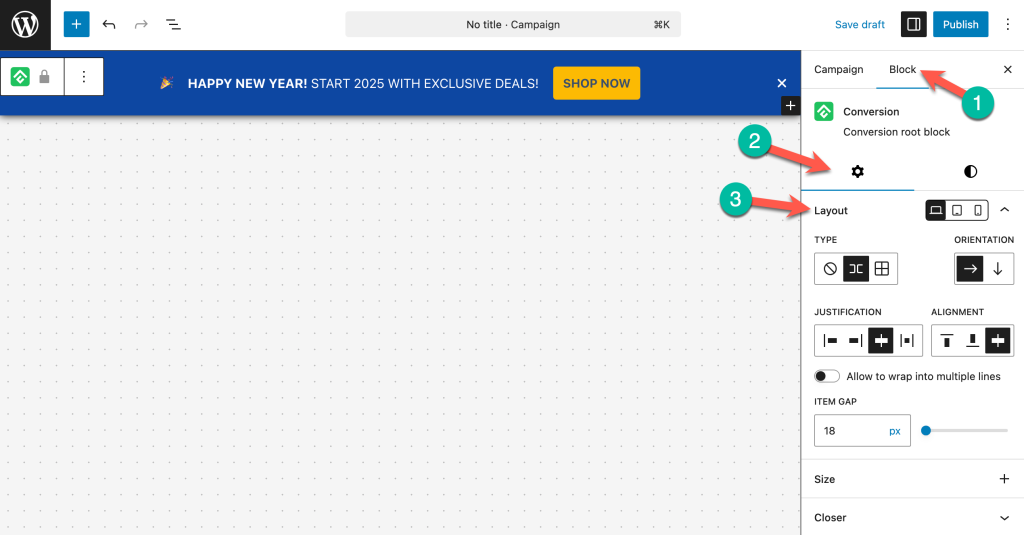
Type
Controls the layout mode of the bar’s content.
Orientation
Sets the content direction — horizontal (row) or vertical (column). Notification bars typically use horizontal orientation to display text and a CTA button side by side.
Justification and Alignment
Controls how content is distributed and aligned within the bar. Justification handles horizontal spacing (left, center, right, space-between), while Alignment handles vertical alignment of items (top, center, bottom, stretch).
Allow to Wrap into Multiple Lines
When enabled, content wraps to the next line if it exceeds the bar’s width. Useful for responsive behavior on smaller screens.
Item Gap
Sets the spacing between items inside the bar in pixels. The default is 16px.
Size Settings
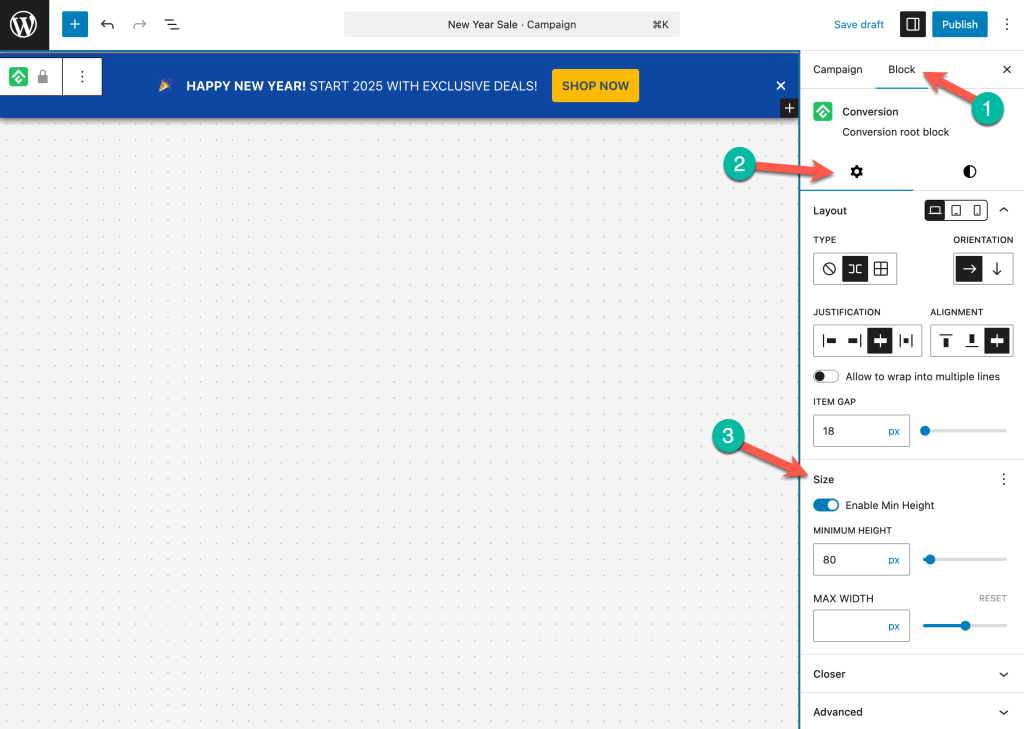
Size settings are found in the Block tab’s settings option.
Minimum Height
The Min Height is enabled by default. The default is 80px. This ensures the bar maintains a consistent height regardless of content length.
Max Width
By default, the bar stretches to full width. Setting a max width creates a contained or boxed appearance.
Style Settings
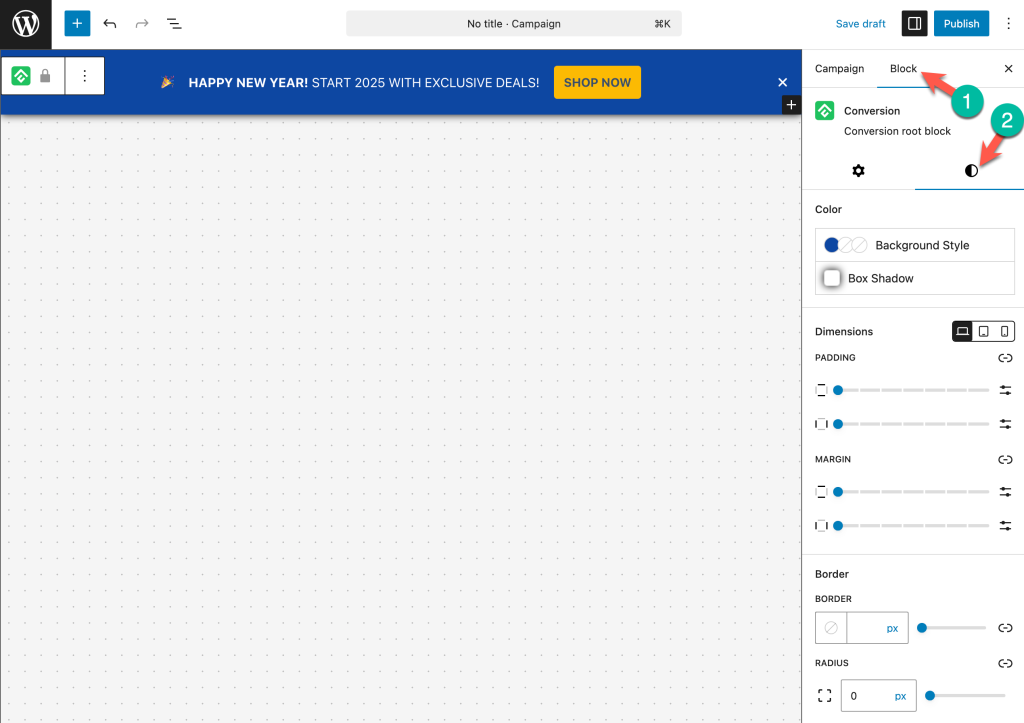
Style settings control the visual appearance of the notification bar. These are found in the Block tab under the Styles panel (the half-circle icon) when the root block (ConvertForce) is selected.
Color
- Background Style — Set a solid color, gradient, or image as the bar’s background. This is the primary way to make the notification bar visually distinct from the rest of the page.
- Box Shadow — Add a shadow around the bar for depth and separation from the page content.
Dimensions
- Padding — Controls the inner spacing between the bar’s content and its edges. Adjust individual sides or link them to apply uniform padding.
- Margin — Controls the outer spacing between the bar and surrounding elements. Useful for adding breathing room around the bar.
Dimensions can also be set per device (desktop, tablet, mobile) using the responsive breakpoint icons.
Border
- Border — Set the border color, width, and style around the bar.
- Radius — Controls the corner rounding of the bar in pixels. A value of 0 keeps the corners sharp.
Close Button
The close button (referred to as Closer in the settings) allows visitors to dismiss the notification bar. Close button settings are found in the Block tab under the Closer section.
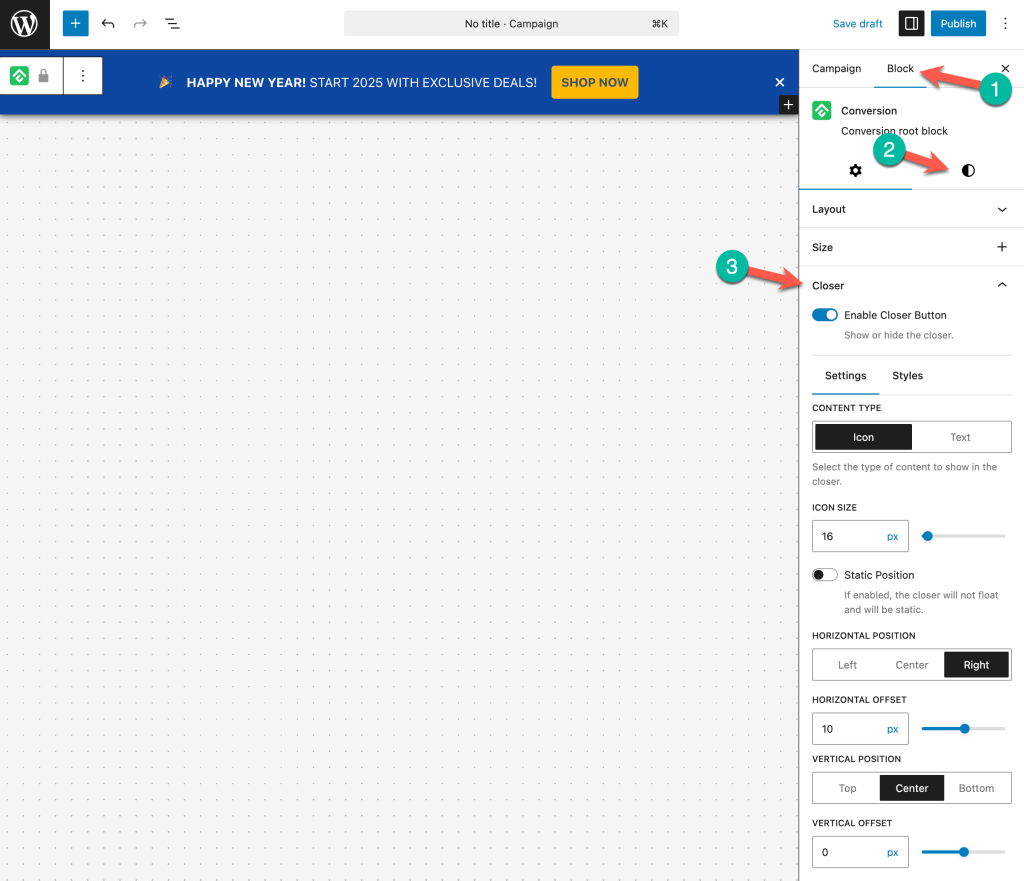
Enable Closer Button
A toggle to show or hide the close button. When disabled, visitors cannot dismiss the bar.
Content Type
Choose between Icon (a close/X icon) or Text (custom text like “Dismiss” or “Close”).
Icon Size
Sets the size of the close icon in pixels.
Static Position
When enabled, the close button sits within the bar’s content flow rather than floating over it.
Close Button Position
Controls where the close button appears within the bar:
- Horizontal Position — Left, Center, or Right.
- Horizontal Offset — Fine-tune the horizontal placement in pixels.
- Vertical Position — Top, Center, or Bottom.
- Vertical Offset — Fine-tune the vertical placement in pixels.
Position Settings
Position settings control where the notification bar appears on the page and how it behaves when visitors scroll. These settings are found in the Campaign tab under the Position section.
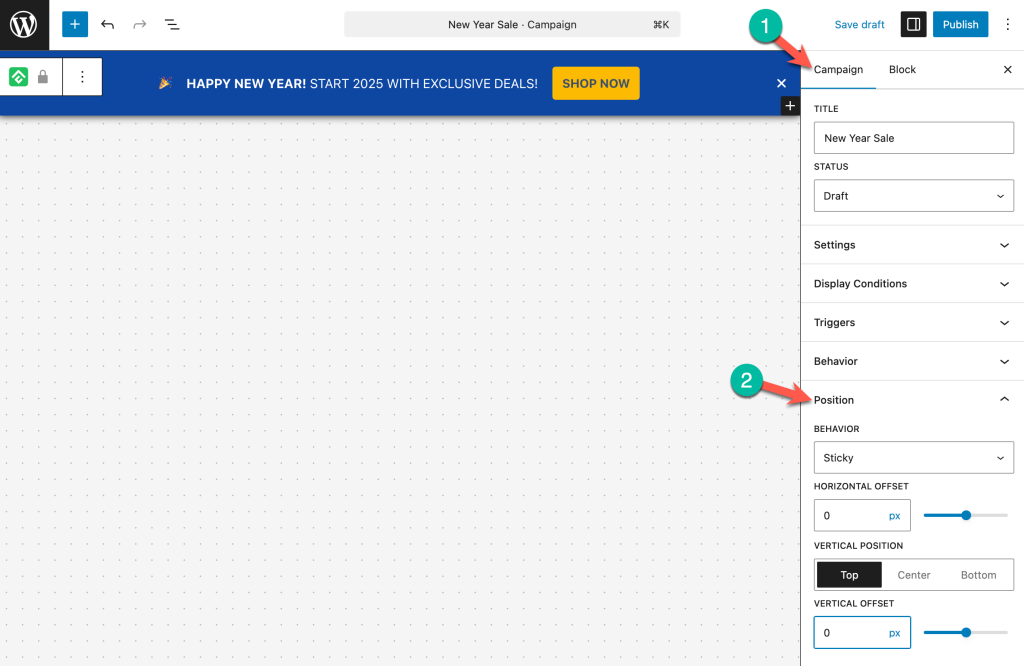
Behavior
The Behavior dropdown determines how the bar interacts with the page layout:
- Floating — The bar floats over the page content and stays visible as the visitor scrolls. It does not push the page content down. This is the default setting.
- Sticky — The bar sticks to the top or bottom of the viewport as the visitor scrolls. Similar to floating, but the bar occupies space in the page layout initially.
- Static — The bar sits in its position within the page flow. It scrolls away with the rest of the content and does not stay fixed on screen.
Vertical Position
Determines whether the bar appears at the Top or Bottom of the page. Top is the most common choice for announcements and promotions. Bottom works well for persistent offers like free shipping notices or discount codes that should stay visible without competing with the site header.
Designing an Effective Notification Bar
A few principles for getting the most out of notification bars:
Keep the message short. Visitors should understand the offer in a glance. Messages like “Summer Sale — 25% Off Sitewide” or “Free Shipping on Orders Over $50” work well.
Use a clear call-to-action. A button with direct text like “Shop Now,” “Claim Offer,” or “Get the Deal” tells visitors exactly what to do.
Choose contrasting colors. The bar should stand out from the rest of the page. A dark background with a bright CTA button is a reliable pattern.
Add urgency when relevant. Phrases like “Limited Time,” “Ends Sunday,” or “Today Only” encourage visitors to act sooner.
Frequently Asked Questions
Can I place the notification bar at the bottom of the page?
Yes. Set the Vertical Position to Bottom in the Position settings.
What is the difference between Floating, Sticky, and Static?
Floating overlays the page and stays fixed on screen. Sticky also stays fixed but initially occupies space in the page layout. Static sits in the page flow and scrolls away with the content.
Can I hide the close button?
Yes. Toggle off Enable Closer Button in the Closer settings under the Block tab. The bar will remain visible until the visitor navigates away.
How do I make the notification bar full-width?
By default, the bar stretches to full width. If a Max Width has been set, remove or reset it to restore full-width behavior.
Can I use the close button as text instead of an icon?
Yes. In the Closer settings, switch Content Type from Icon to Text and enter the desired text.
Can I add a countdown timer to the notification bar?
Right now, no. But we will include a Countdown Timer block in the next release.