Advanced Targeting Overview
Advanced Targeting is a ConvertForce Pro feature that controls which visitors see a campaign. Display conditions decide where a campaign appears on the site. Advanced targeting decides who it appears for, using 37 conditions across eight categories: URL, Browser, Device, Cookie, HTML Element, Keyboard, Referrer, and User.
All advanced targeting settings are found in the Campaign tab in the right-hand sidebar of the campaign editor, under the Advanced Targeting section, between Display Conditions and Triggers.
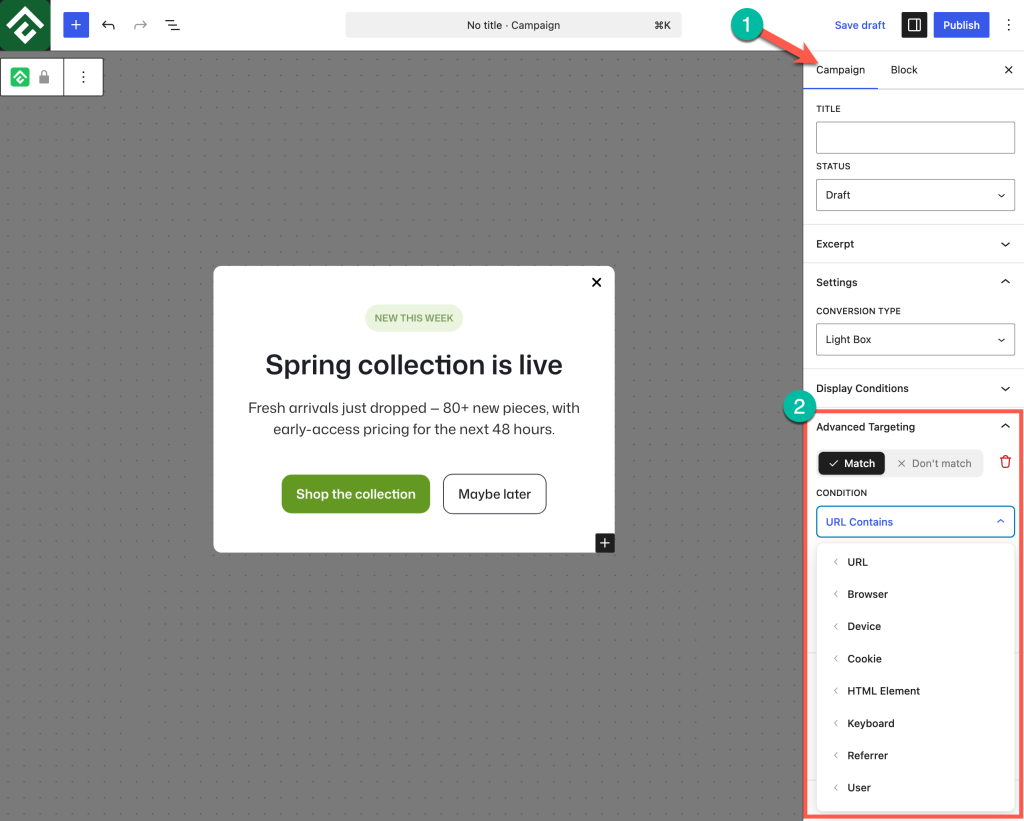
Adding a Condition
Every campaign starts with no advanced targeting applied, which means it is eligible for all visitors who already satisfy the campaign’s display conditions. To narrow the audience:
- Open the campaign in the editor and select the Campaign tab in the sidebar.
- Expand the Advanced Targeting section.
- Open the Condition dropdown and choose one of the eight categories.
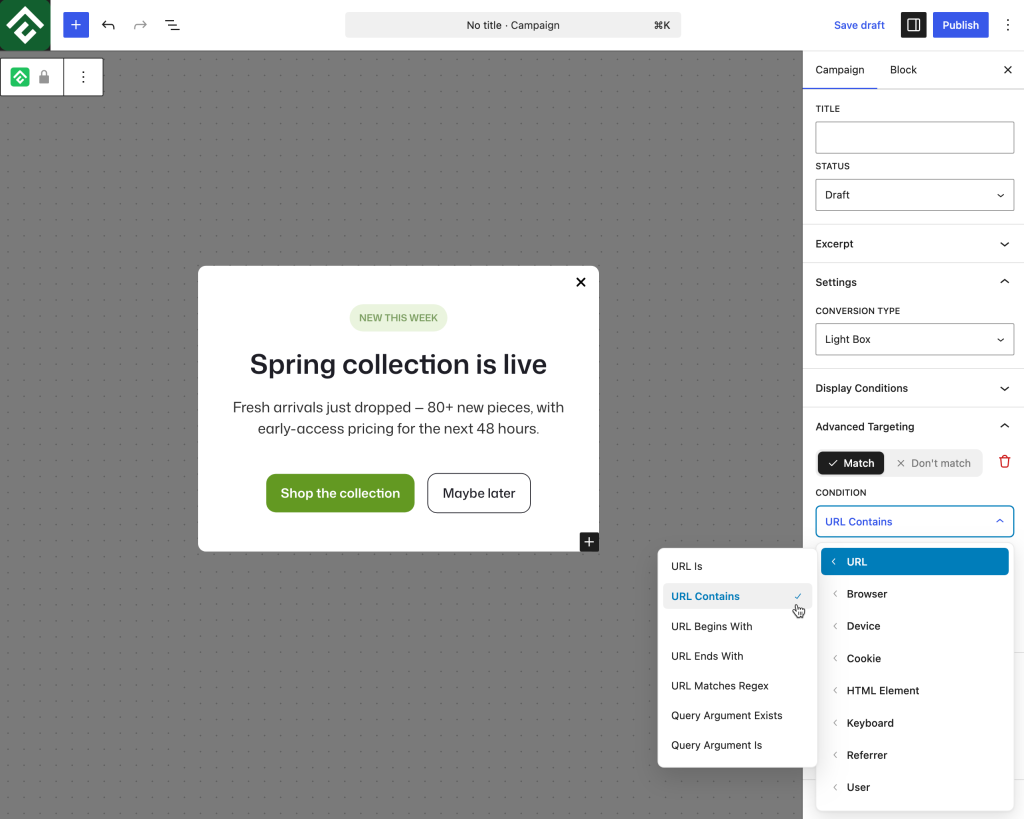
- Select a condition from that category’s submenu.
- If the condition needs a value, a Text field appears below the dropdown. Enter the value to match against.
- Click + Add Condition to add more rules, or save the campaign.
The condition dropdown is a two-level menu. The top level lists the eight categories, and hovering or selecting a category reveals its individual conditions.
Conditions With and Without Values
The fields that appear beneath a condition depend on what that condition needs, and each one is labeled for its own purpose rather than generically:
- No fields — The condition answers a yes or no question, so selecting it is the whole rule. Is Mobile, Is Phone, Is Tablet, Is Logged In, Holding Ctrl, and Is Search Engine all work this way.
- One field — A single value to compare against. URL Contains uses a Text field, and Cookie Exists uses a Cookie Name field.
- Two fields — Either a pair of related values or a range. Cookie Value Is asks for Cookie Name and Value, while Screen Width asks for Min Width (px) and Max Width (px). With a range, filling in only one of the two fields leaves that end open.
- A preset list — A set of options to choose from instead of a typed value. Is Browser works this way, offering Chrome, Firefox, Safari, Internet Explorer, Opera, and Android Browser.
Match vs. Don’t Match
Every condition has its own toggle with two modes:
- Match — The campaign is shown to visitors who meet the condition.
- Don’t match — The campaign is hidden from visitors who meet the condition.
This toggle turns any condition into its own opposite, so there is no need for a separate set of exclusion rules. Match → Is Logged In targets members only. Don’t match → Is Logged In targets logged-out visitors only. The same pattern applies to all 37 conditions.
How Multiple Conditions Combine
Conditions are stacked with + Add Condition, and every condition must be satisfied for the campaign to display. Each rule added narrows the audience further rather than widening it.
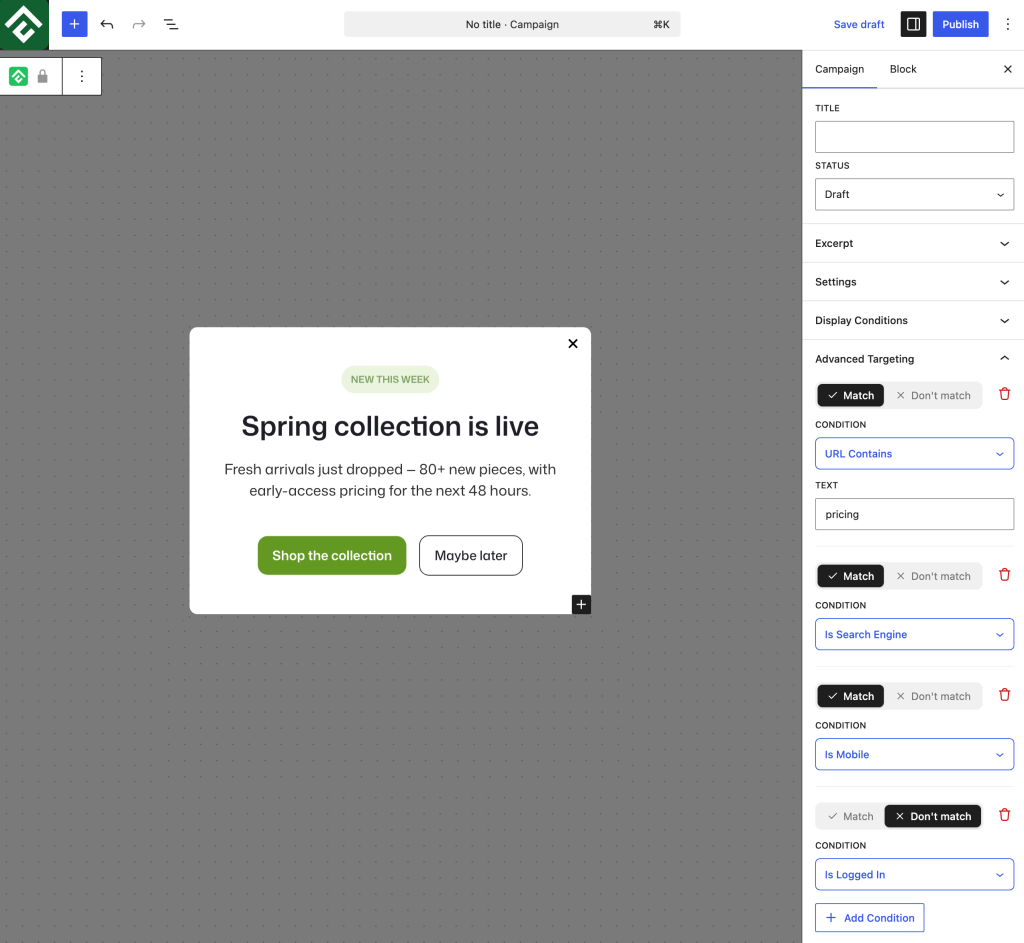
For example, this set of four conditions describes a single narrow audience:
- Match → URL Contains with a value of
/pricing - Match → Is Search Engine
- Match → Is Mobile
- Don’t match → Is Logged In
The campaign now displays only for logged-out mobile visitors who arrived from a search engine and are viewing a pricing page. A visitor who fails any one of the four conditions never sees it.
Because conditions narrow rather than widen, two conditions that contradict each other will prevent a campaign from appearing at all. Match → Is Phone combined with Match → Is Tablet can never both be true for the same visitor.
Advanced Targeting vs. Display Conditions
The two features answer different questions and work together rather than replacing The two features answer different questions and work together rather than replacing each other.
- Display Conditions — Available in the free version. Targets by site structure: pages, posts, categories, tags, templates, and archives. Answers “where does this campaign belong?”
- Advanced Targeting — Requires ConvertForce Pro. Targets by visitor and request context: URL patterns, referrer, device, browser, cookies, page elements, keyboard state, and visitor history. Answers “who should see this campaign?”
A campaign with both configured displays only when its display conditions and its advanced targeting conditions are all satisfied. Both features also have their own Triggers counterpart: targeting decides whether a visitor qualifies, and the trigger decides the moment the campaign appears for a visitor who does.
Condition Categories
Each category has its own article covering every condition it contains, the values it accepts, and worked use cases.
- URL (7 conditions) — Target by the address of the page being viewed, including query strings and UTM parameters.
- Browser (4 conditions) — Target by browser name, version, and viewport size.
- Device (6 conditions) — Target phones, tablets, screen dimensions, and device brands.
- Cookie (2 conditions) — Use any cookie in the visitor’s browser as a targeting signal.
- HTML Element (3 conditions) — Target based on what is present or visible on the page itself.
- Keyboard (3 conditions) — Target visitors holding a modifier key, useful for private previews and testing.
- Referrer (6 conditions) — Target by where the visitor came from, including search engines and external sites.
- User (6 conditions) — Target by login state, WordPress role, and on-site behavior.
Removing a Condition
Each condition has a delete icon beside its Match toggle. Selecting it removes that condition only and leaves the rest of the stack intact. Removing every condition returns the campaign to its default state, where advanced targeting places no restriction on who sees it.
Frequently Asked Questions
Is Advanced Targeting available in the free version?
No. Advanced Targeting requires ConvertForce Pro. The free version includes Display Conditions, which covers page and post level targeting.
How many conditions can one campaign have?
There is no fixed limit. Add as many as the campaign needs, keeping in mind that every condition must be satisfied for the campaign to display.
Do conditions use AND or OR logic?
Across conditions, AND logic applies: every condition added to a campaign must be true at once. Within a single condition, some inputs accept several values and match on any one of them. Has Role, for example, offers a checkbox list, and a visitor holding any one of the ticked roles satisfies the condition.
This matters when a rule needs to cover two alternatives. Stacking two conditions asks for both to be true, which is impossible for mutually exclusive values such as two different roles. Selecting both values inside one condition is the way to express “either of these”.
Can the same condition be used twice?
Yes, and this is how exceptions are built. Pair Match → URL Contains with a value of /blog and Don’t match → URL Contains with a value of /blog/private to cover a whole section except one part of it.
Does Advanced Targeting replace my display conditions?
No. Both apply at the same time, and a campaign displays only when both sets of rules are satisfied. Existing display conditions keep working exactly as before after Pro is activated.
Why is my campaign not appearing after adding conditions?
The most common causes are two conditions that cannot both be true, a Match toggle left in the wrong mode, or a value with a typo. Remove conditions one at a time until the campaign appears to identify which rule is excluding the visit.