Browser Conditions
Browser conditions target a campaign based on the browser a visitor is using and the size of the window they are viewing the site in. This category contains four conditions.
Browser conditions are found in the Campaign tab of the campaign editor sidebar, under Advanced Targeting. Open the Condition dropdown and select Browser. Advanced Targeting requires ConvertForce Pro.
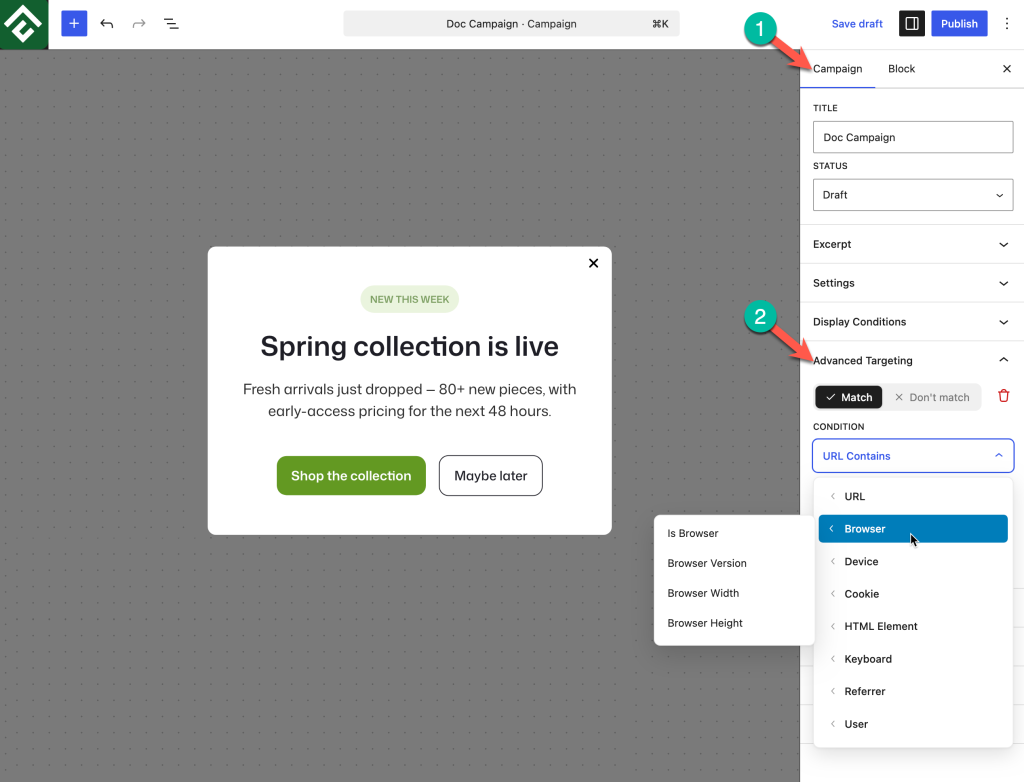
Available Conditions
Is Browser
Matches when the visitor is using a specific browser. Select the Browser names (Chrome, Firefox, Safari, Internet Explorer, Opera, and Android Browser).
Use case: A notice about a rendering issue that only affects one browser, shown to the visitors who will actually encounter it rather than to everyone.
Browser Version
Matches based on the version of the browser making the request. Pair it with Is Browser when a rule should apply to one version of one browser rather than that version number across all browsers.
Use case: A bar prompting visitors on an outdated browser to upgrade, so the message reaches the small group affected instead of the whole audience.
Browser Width
Matches on the width of the browser viewport, measured in pixels. This is the space the page is actually rendered into, so it changes when a visitor resizes the window and it excludes browser chrome.
Use case: Suppressing a wide slide-in on narrow windows where it would cover most of the content, without tying the rule to device type.
Browser Height
Matches on the height of the browser viewport in pixels. Useful for tall campaigns that need vertical room to display without being cut off.
Use case: Restricting a tall multi-section lightbox to windows with enough height to show it in full, and running a shorter bar campaign elsewhere.
Browser Size vs. Device Screen Size
Advanced Targeting offers size conditions in two categories, and they measure different things:
- Browser Width and Browser Height measure the viewport, which is the area the page is drawn into. A desktop visitor with a small window has a small browser width on a large screen.
- Screen Width and Screen Height in the Device category measure the physical display.
For layout decisions, browser size is almost always the correct choice, because it reflects the space the campaign will actually occupy. Screen size is the better choice for identifying a class of hardware.
Common Use Cases
Browser-specific issue notice. Set Match → Is Browser, select the affected browser, and pair it with a URL condition if the issue only affects one part of the site.
Outdated browser upgrade prompt. Combine Match → Is Browser with Match → Browser Version so the prompt targets one browser at one version range.
Narrow window protection. Set Don’t match → Browser Width for small widths so a wide campaign never appears in a window too narrow to hold it.
Frequently Asked Questions
Should browser conditions be used for mobile targeting?
Device conditions are the better tool. Is Mobile, Is Phone, and Is Tablet describe the device directly, while a browser width value only approximates it and will also catch desktop visitors with narrow windows.
Do browser conditions replace responsive design?
No. Every ConvertForce campaign is already responsive and adapts to the screen it lands on. Browser size conditions decide whether a campaign runs at all, which is a different job from how it looks once it does.
What happens if a visitor resizes the window after the campaign appears?
Test this behavior for any campaign that depends on browser size, since the correct expectation depends on when the condition is evaluated during the page lifecycle.
Can several browsers be targeted with one campaign?
Yes.