
A lightbox popup is a modal window that appears over your page content with a dimmed background. You use it to show offers, announcements, or calls to action without sending visitors to a different page. (It’s not the same as an image gallery lightbox, which just opens larger versions of photos.)
Most lightbox popup plugins limit you to a fixed set of content elements, usually a headline, a paragraph, a button, and maybe an image. ConvertForce works differently. It lets you build your popup with any core WordPress block, so you can add an image, a video, a button, a multi-column layout, or anything else WordPress natively supports.
In this tutorial, you’ll learn how to set up a lightbox popup in WordPress from scratch using the free ConvertForce plugin.
Step 1: Install and Activate ConvertForce
From your WordPress dashboard, go to Plugins → Add New and search for “ConvertForce.” Find the plugin in the results, click Install Now, then click Activate.
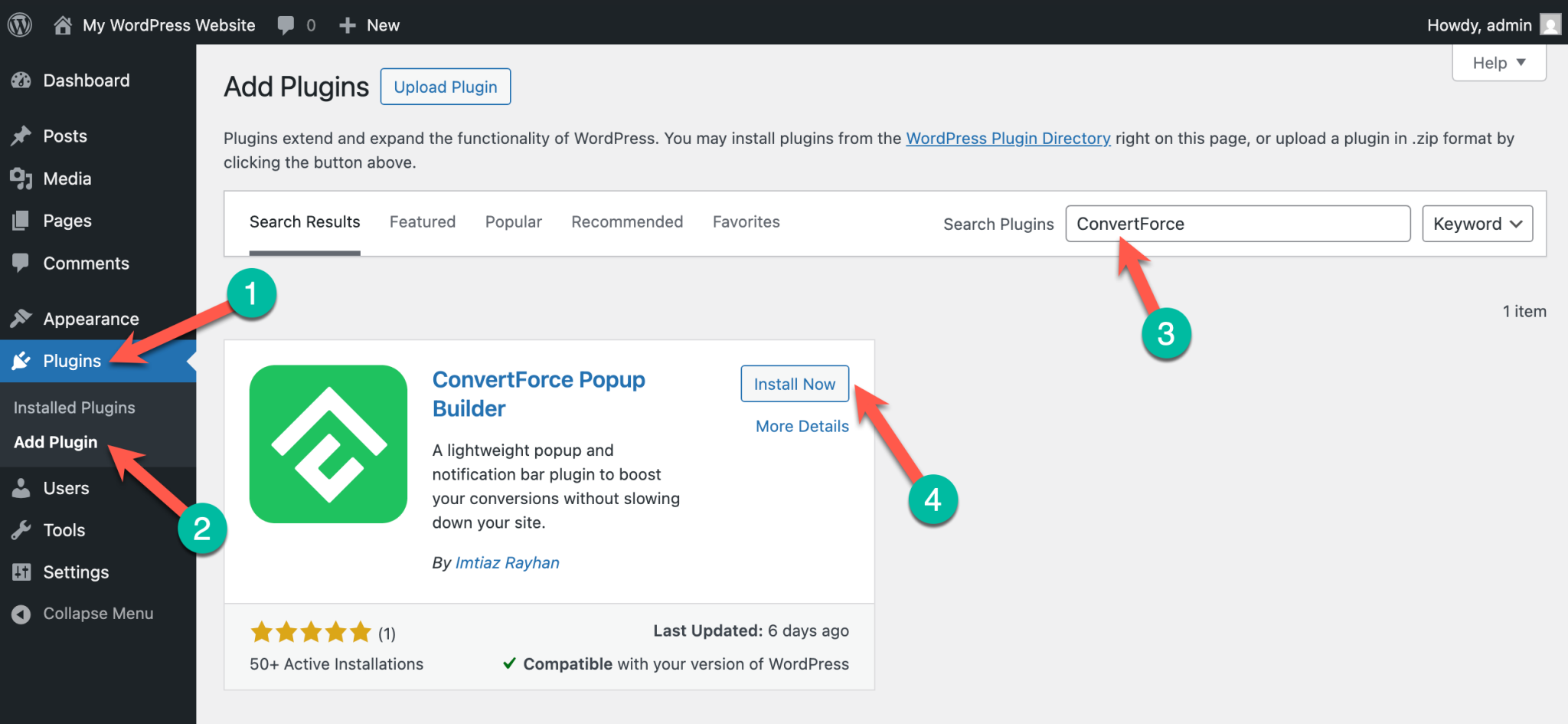
You can also download the plugin directly from the WordPress.org plugin repository and upload the zip file manually if you prefer.
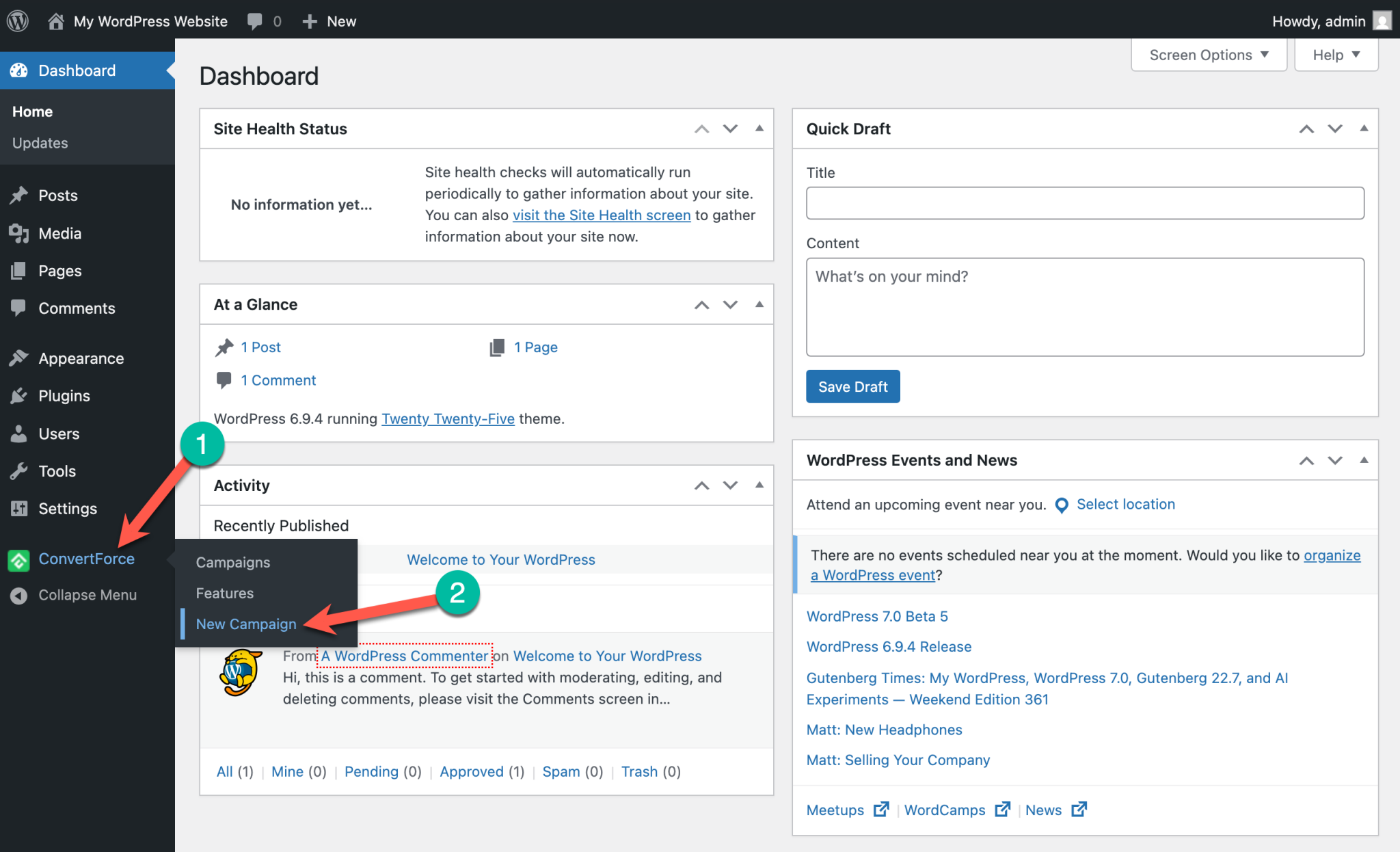
Once activated, a new ConvertForce menu item appears in your WordPress admin sidebar.
Step 2: Create a New Lightbox Campaign
Go to ConvertForce → New Campaign in the admin sidebar.
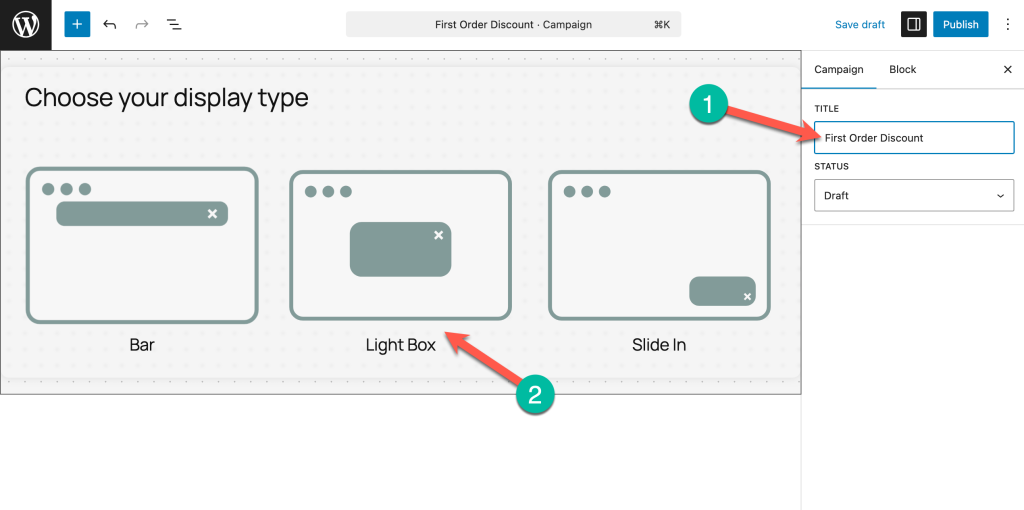
Give your campaign a name you’ll recognize later, like “First Order Discount” or “Free Shipping Announcement.”
ConvertForce supports three campaign types: lightbox popups, notification bars, and slide-ins. Select the Lightbox campaign type for this tutorial.
Once you’ve selected it, you’ll be taken into the editor.
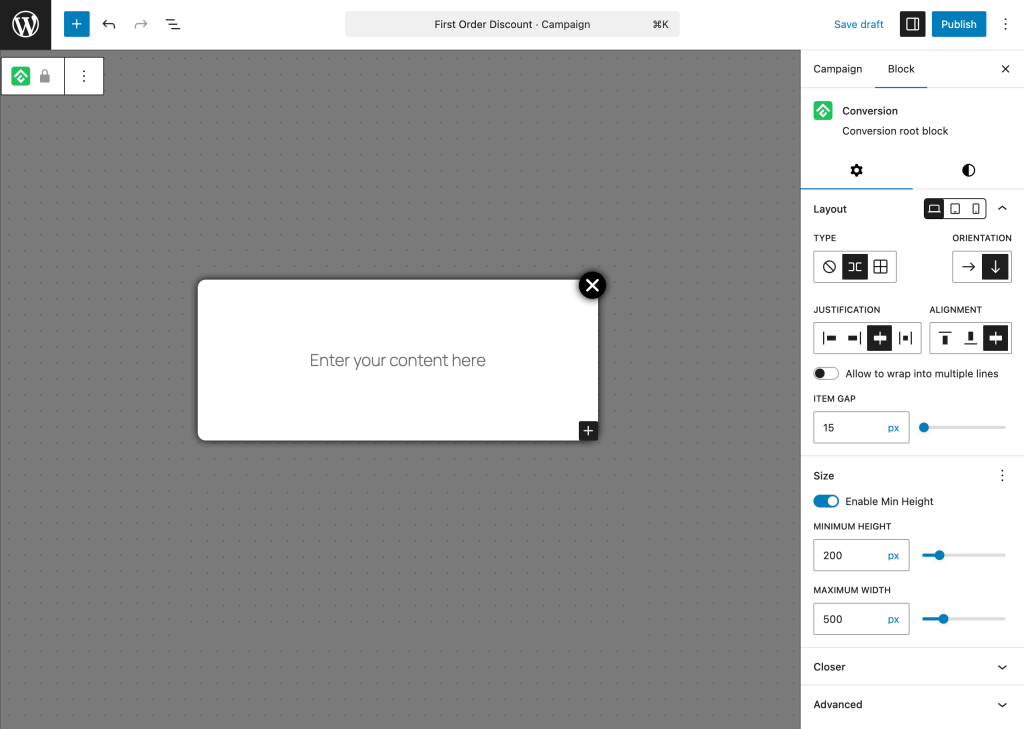
Step 3: Add Blocks to Your Lightbox
This is the step where ConvertForce really stands apart. Adding content to your popup works exactly the same way as adding content to a regular WordPress post. Click the plus icon, search for the block you want, and drop it in.
Here are a few examples of what you can build, depending on the kind of popup you need.
Image Popup
To create an image popup, add an image block to your lightbox and either upload a new file or pick one from your media library. This works well for visual offers like sale banners, product launches, or coupon graphics.
Video Popup
For a video popup, add a video block (for self-hosted videos) or an embed block (for YouTube, Vimeo, or other streaming platforms). Paste in your video URL or upload your file, and the video will play right inside the popup. Video popups are great for product demos, welcome messages, and tutorial walkthroughs.
Text and Button Popup
For a classic call-to-action popup, combine a heading block, a paragraph block, and a button block. The heading carries your offer, the paragraph supports it, and the button sends visitors wherever you want them to go next. This is the simplest and most common popup format.
Multi-Block Layout
For something more involved, use the columns block or group block to combine several blocks into a custom layout. You could have an image on one side and a heading plus button on the other, or stack a video above a text block above a CTA. The flexibility is the whole point.
Step 4: Choose Where the Lightbox Shows
By default, your lightbox can appear across your entire site, but targeted popups almost always perform better than site-wide ones. ConvertForce lets you show the popup on all pages, on specific pages or posts, or on specific post types.
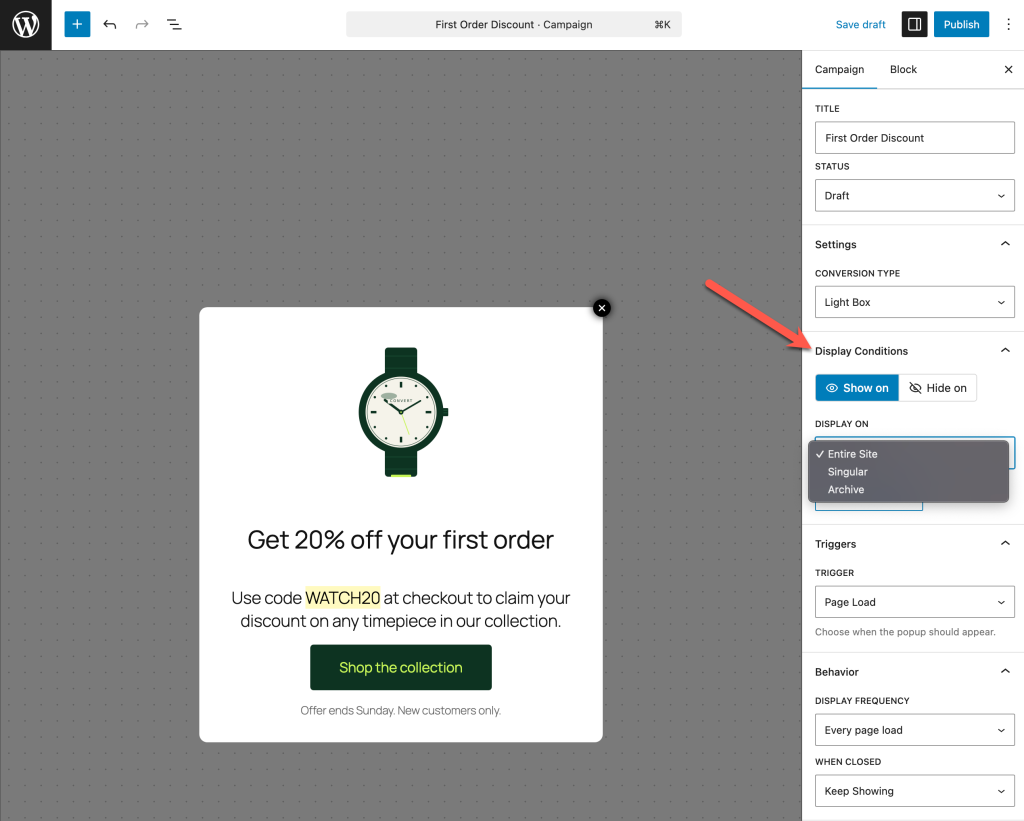
A popup offering a discount on running shoes will convert much better on a running shoe category page than on a general blog post. Take a moment to think about where each campaign actually makes sense.
Step 5: Configure When the Lightbox Appears
After your popup design is ready, decide when it should appear to visitors. ConvertForce lets you control this with triggers.
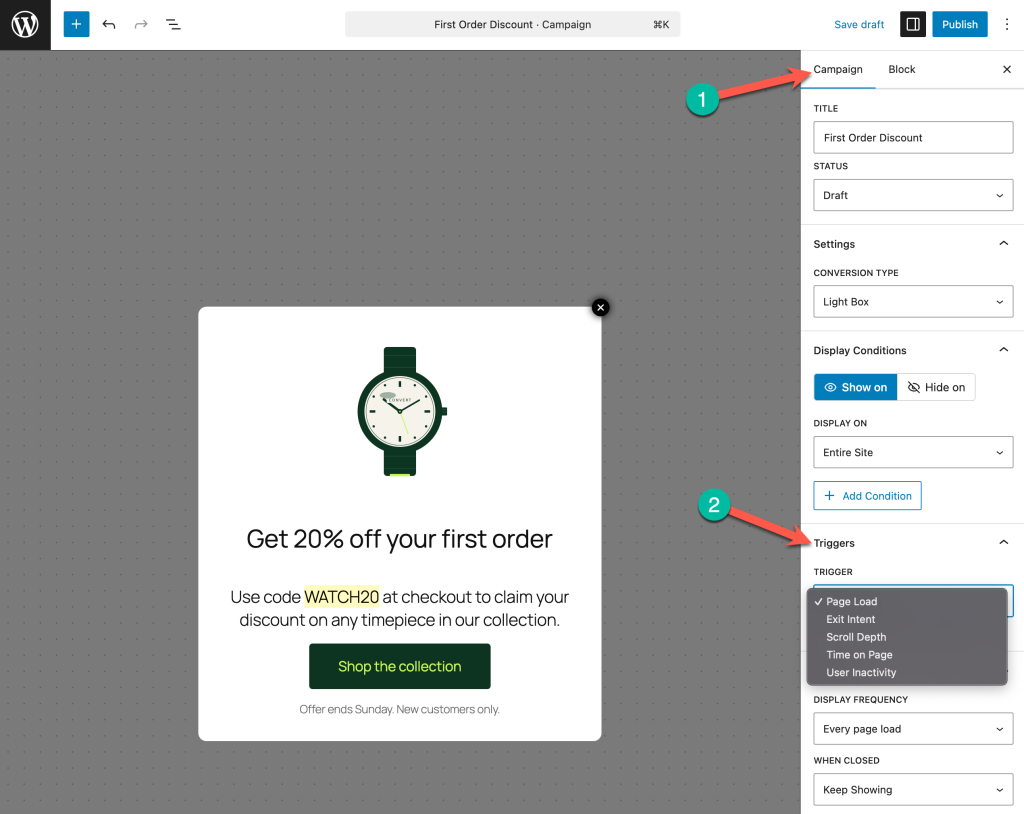
The free version supports the page load trigger, which displays the popup after the page finishes loading. You can set a delay (in seconds) so visitors get a moment to start reading your content before the popup interrupts them. A delay of 5 to 10 seconds tends to work well for most sites.
If you upgrade to ConvertForce Pro, you also get:
- Exit intent, which triggers the popup when a visitor moves their cursor toward the browser’s close button. On mobile, ConvertForce uses rapid scroll-up detection to mimic the same behavior.
- Scroll depth, which triggers the popup once a visitor has scrolled a certain percentage of the page.
- User inactivity, which triggers the popup after a visitor has been idle for a set amount of time.
For this tutorial, we’ll stick with the page load trigger.
Step 6: Set the Display Behavior
Triggers tell ConvertForce when to show the popup. The display behavior settings tell ConvertForce how often to show it and what should happen after a visitor closes it.
There are two key controls. Display frequency decides how often the same visitor sees the popup, with options for “Every page load” or “Once per session.” When closed decides what happens after the visitor dismisses the popup, with options for “Keep showing” or “Hide forever.”
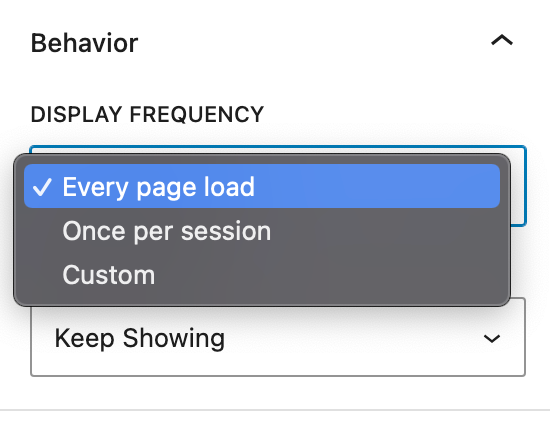
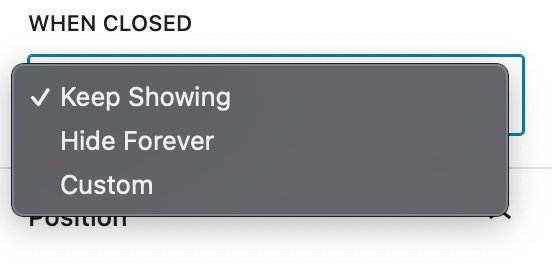
For most sites, the friendliest combination is “Once per session” plus “Hide forever.” This shows the popup to new visitors but doesn’t badger people who have already seen it and decided not to act on it. Aggressive popup behavior is one of the fastest ways to annoy visitors and increase your bounce rate.
Step 7: Publish and Test Your Lightbox
Once everything is configured, publish the campaign. Open your site in a new incognito browser window so you’re not affected by any cached display rules, and visit a page where the popup is set to appear.
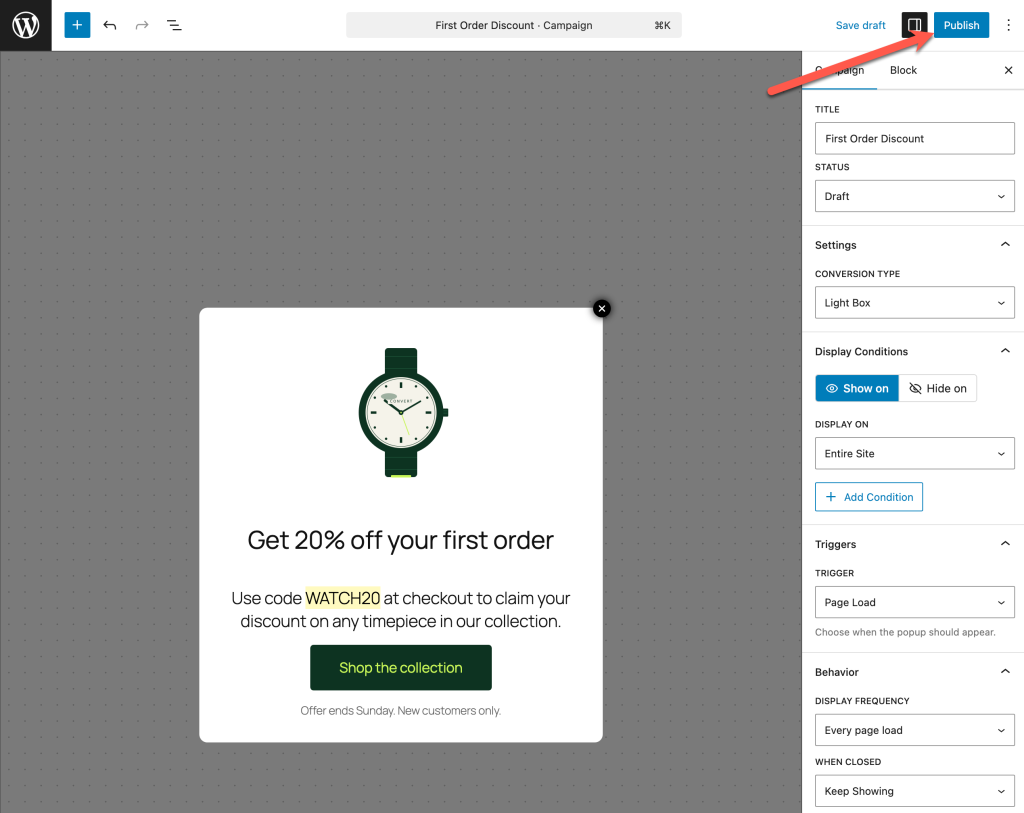
Run through this quick checklist:
- The popup appears at the right time and on the right pages
- All your blocks render correctly inside the popup
- The close button is visible and easy to tap
- The popup looks good on mobile
- After closing, the popup respects your frequency and “when closed” settings
If anything looks off, head back to the campaign editor and adjust it.
Tips for High-Converting Lightbox Popups
A few principles that separate popups people engage with from popups people instantly dismiss:
Match the content to the offer. Use a video popup for product demos, an image popup for visual products, and a simple text popup for short announcements. The block flexibility only matters if you actually use it.
Keep the offer specific and singular. The best popups have one job. Don’t try to promote three things at once or stuff in two competing buttons.
Don’t trigger too aggressively. A popup that fires the instant a visitor lands on your page is almost always counterproductive. Give people a few seconds to start engaging with your content first.
Use page targeting. A popup that matches what the visitor is already reading converts far better than a generic site-wide message.
Always include an obvious close button. Visitors who feel trapped by a popup will leave your site entirely. A clearly visible close button is non-negotiable, both for user experience and for SEO.
Frequently Asked Questions
What is a lightbox popup in WordPress?
A lightbox popup is a modal window that appears over your page content with a dimmed background. It’s used to display offers, announcements, images, videos, or calls to action without sending visitors to a different page. It’s different from an image gallery lightbox, which opens larger versions of photos in an overlay.
Can I show a video inside a WordPress lightbox popup?
Yes. With ConvertForce, you can add a video block (for self-hosted videos) or an embed block (for YouTube, Vimeo, and other platforms) directly inside your lightbox. The video plays right inside the popup.
Can I add an image popup in WordPress?
Yes. You can create an image popup by adding an image block to a ConvertForce lightbox campaign. The image displays inside the popup with a dimmed background, and you can pair it with other blocks like buttons or text.
Do I need a page builder to create a lightbox popup?
No. ConvertForce works entirely with core WordPress blocks, so you don’t need Elementor, Divi, or any other page builder.
Is ConvertForce free?
Yes. ConvertForce has a free version available on the WordPress.org plugin repository. The free version includes lightbox popups, notification bars, slide-ins, and the page load trigger. ConvertForce Pro adds advanced triggers like exit intent, scroll depth, and user inactivity.
How do I stop a lightbox popup from showing repeatedly?
Inside your ConvertForce campaign settings, set the display frequency to “Once per session” and the “When closed” behavior to “Hide forever.” This shows the popup to each visitor only once and prevents it from reappearing after they dismiss it.
Can I add an exit-intent lightbox in WordPress?
Yes. Exit intent is available in ConvertForce Pro. It triggers your popup when a visitor’s cursor moves toward the browser close button on desktop, or when they perform a rapid scroll-up gesture on mobile.
Final Thoughts
Lightbox popups are one of the highest-leverage tools you can add to a WordPress site, but only if the popup matches what you actually want to show. The advantage of using ConvertForce is that you’re not boxed in by a fixed set of popup elements. Whether your offer is best presented as an image, a video, a button, or a custom layout combining all three, you can build it using the core WordPress blocks you already know.
Set up your first campaign, watch how visitors respond, and iterate from there. Small adjustments to your content, trigger timing, and display behavior often make a much bigger difference than you’d expect.
Leave a Reply