Keyboard Conditions
Keyboard conditions target a campaign based on whether the visitor is holding a modifier key. This category contains three conditions, and its main purpose is testing: a keyboard condition makes a published campaign visible on the live site to anyone who knows the key, and invisible to everyone else.
Keyboard conditions are found in the Campaign tab of the campaign editor sidebar, under Advanced Targeting. Open the Condition dropdown and select Keyboard. Advanced Targeting requires ConvertForce Pro.
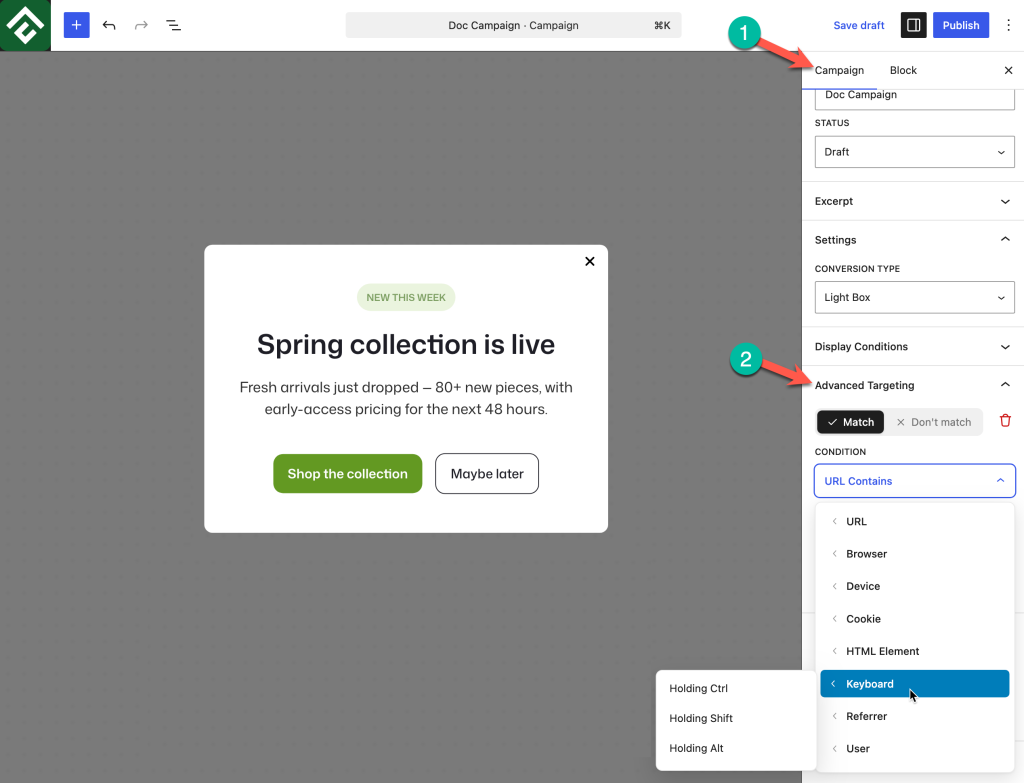
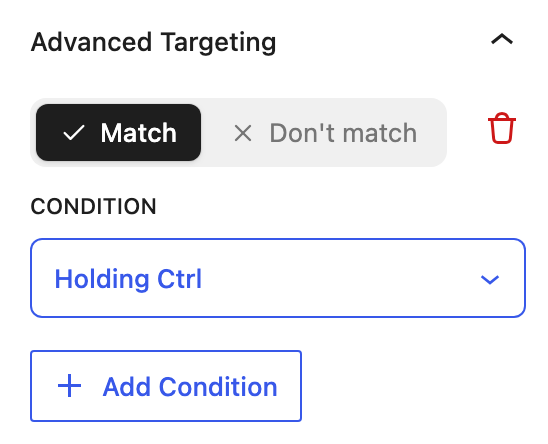
None of the three conditions takes a value. Selecting one is the entire rule, and no fields appear beneath the condition dropdown.
Available Conditions
Holding Ctrl
Matches while the visitor is holding the Ctrl key.
Use case: Checking a published campaign on the live site without any visitor being able to see it.
Holding Shift
Matches while the visitor is holding the Shift key. Shift behaves identically on Windows and Mac keyboards, which makes it the safest choice when a campaign has to be reviewed by people on different platforms.
Use case: Assigning a second campaign its own key, so two variants can be reviewed in one session without editing either one.
Holding Alt
Matches while the visitor is holding the Alt key, which is labeled Option on Mac keyboards.
Use case: A third review key for a campaign that needs to be checked alongside two others.
Testing a Live Campaign Privately
This is the primary reason keyboard conditions exist. A campaign has to be published to be tested in real conditions, but publishing normally means every visitor sees it. Adding a keyboard condition resolves that:
- Finish building the campaign and set its display conditions and trigger as intended.
- Add Match → Holding Ctrl under Advanced Targeting.
- Publish the campaign. It is now live but appears for nobody, because no ordinary visitor is holding Ctrl.
- Open the site, hold Ctrl, and let the trigger fire to see the campaign exactly as visitors will.
- When the campaign is approved, delete the keyboard condition and save. It goes live for everyone with no other change.
This is more reliable than previewing in the editor, because the campaign runs on the real site with the real theme, the real trigger, and the real display conditions all active.
Choosing Which Key to Use
All three keys work the same way, so the choice comes down to who is reviewing and on what:
- Shift is the most portable, because it is the same key on every keyboard.
- Ctrl is the convention on Windows, but a Mac reviewer holding Command instead will see nothing, which is worth stating when sharing the link.
- Alt is Option on a Mac. Reviewers should be told both names.
When two campaigns are being reviewed at once, give each its own key so they can be told apart without any editing between checks.
Combining a Keyboard Condition With Others
Because stacked conditions must all be true, a keyboard condition sits cleanly on top of an existing rule set without disturbing it. A campaign already targeting mobile visitors on checkout pages keeps both conditions, and the keyboard condition simply adds a third requirement.
This means the campaign being tested is the finished campaign, not a simplified copy of it, and removing the keyboard condition is the only change needed at launch.
One consequence is worth planning for. If the other conditions exclude the person doing the review, holding the key will not help. A campaign restricted to mobile visitors has to be reviewed on a mobile device, and a campaign restricted to logged-out visitors has to be reviewed in a private window.
Common Use Cases
Review a campaign before launch. Add Match → Holding Ctrl, publish, review on the live site, then delete the condition when approved.
Share a campaign with a client for approval. Publish with a keyboard condition and tell the client which key to hold. No staging site and no account access are required.
Compare two versions side by side. Give one campaign Holding Ctrl and the other Holding Shift, then review both in a single session.
Keep a diagnostic campaign permanently available. A campaign showing internal notes or reference information can stay published indefinitely behind a keyboard condition, visible only to the team.
Frequently Asked Questions
Is there a condition for the Cmd key on Mac?
The three available conditions are Ctrl, Shift, and Alt. Alt corresponds to the Option key on a Mac keyboard, and Shift is identical on both platforms, so either is a safe choice for cross-platform testing.
Could a visitor see the campaign by accident?
It is possible in principle, since modifier keys are used for ordinary browsing shortcuts such as opening a link in a new tab. Treat a keyboard condition as a way to keep a campaign out of sight during review, not as a security measure, and do not use it to hide confidential information.
Does the key need to be held when the page loads or when the campaign appears?
Hold the key while the trigger fires, and keep holding it through the moment the campaign should appear. For a Time Delay trigger this means holding the key until the delay has elapsed.
Can two modifier keys be required together?
Yes. Stack two keyboard conditions, for example Holding Ctrl and Holding Shift, and both keys must be held at once. This reduces the chance of the campaign appearing during normal browsing.
Why is the campaign still not appearing while holding the key?
Check the campaign’s other conditions first. Every condition has to be satisfied at once, so a rule excluding the reviewer will keep the campaign hidden however long the key is held. Confirm the campaign is published rather than saved as a draft, and that the trigger has had a chance to fire.
Is this the recommended way to preview a campaign?
It is the best way to check a finished campaign in live conditions, because triggers and display conditions all behave normally. For checking design and copy while building, the editor preview is faster.