

ConvertForce 1.3.0 is out, and it brings the feature we have been asked about more than any other: a countdown timer.
Here is the short version:
- A new Countdown (CF) block comes to ConvertForce Pro. Count down to a fixed date, run a personal timer for each visitor, or repeat a countdown on a schedule.
- You decide what happens at zero. Leave the timer at 00:00, hide it, show a message, or close the whole campaign.
- Eight timer styles and full control over fonts, colors, and spacing, so the timer matches your campaign design.
- The pattern library now holds more than 100 designs for lightbox popups, slide-ins, and bars, with Black Friday, Cyber Monday, Halloween, and holiday campaigns ready to go.
- Pro scripts stay off pages without campaigns, and a handful of fixes make bars, slide-ins, and lightbox popups more stable and accessible.
Here is everything that changed, one item at a time.
What’s New In ConvertForce 1.3.0
| Type | Change | What It Does |
|---|---|---|
| New (Pro) | Countdown (CF) Block | A countdown timer with fixed, evergreen, and recurring modes. |
| New | Pattern Library | More than 100 ready-made designs, with countdown versions in Pro. |
| Improved (Pro) | Pro Script Loading | Pro scripts load only on pages that contain a campaign. |
| Improved | Top Bar Layout Shift | Static and sticky top bars no longer push the page around. |
| Improved | Slide-In Accessibility | Slide-ins no longer trap keyboard focus. |
| Fixed | Floating Content | Floated items stay inside static bars and slide-ins. |
| Fixed | Escape Key | The Escape key always closes a lightbox popup. |
| Fixed | Freemius SDK | Updated to version 2.13.5. |
Meet The Countdown (CF) Block
Countdown (CF) is a new ConvertForce Pro block that adds a live countdown timer to any popup, slide-in, or bar. It counts down to a fixed date, runs a per-visitor evergreen timer, or repeats on a schedule you set.
Why build our own? In 1.2 we opened campaigns to any block, and some of you started using countdown blocks from other plugins. That works, but it has two problems. Many third-party countdown blocks do not render properly in the ConvertForce editor preview. And none of them know they live inside a campaign, so they cannot close the popup when the offer ends. Countdown (CF) solves both.
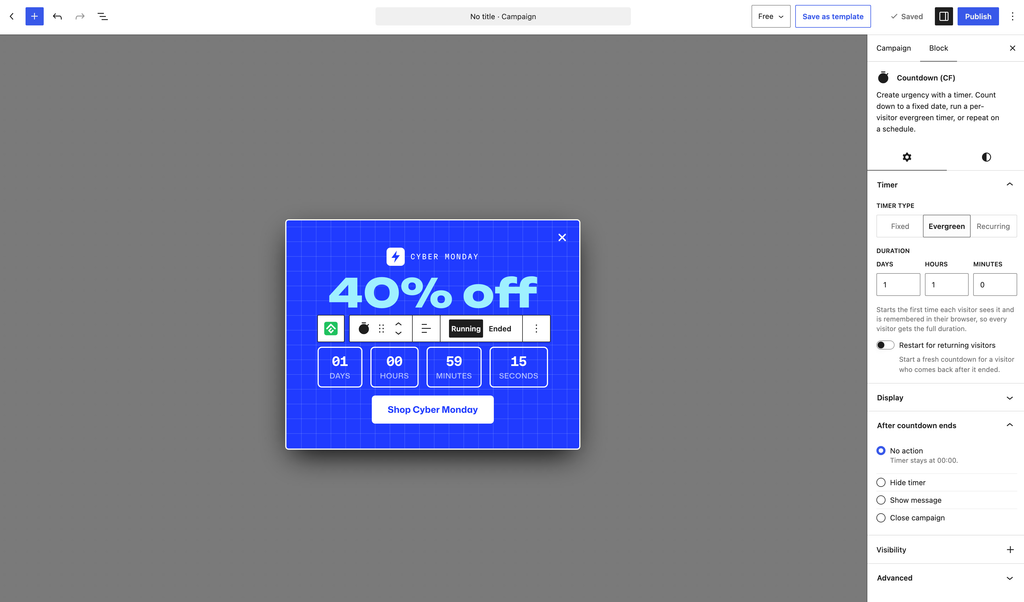
Three Timer Types
The Timer Type setting decides how the countdown behaves. You will find it in the Timer panel of the block’s Settings tab.
| Timer Type | How It Works | Best For |
|---|---|---|
| Fixed | Counts down to one date and time. Everyone sees the same deadline. | Black Friday, product launches, webinar start times |
| Evergreen | Starts the first time each visitor sees it, for a duration you set. | Welcome offers, first-visit discounts |
| Recurring | Repeats on a schedule, starting from a date you pick. | Daily deals, weekly flash sales |
Fixed Timer
A Fixed timer counts down to one deadline that is the same for every visitor. Set the date and time in the Ends On field. The timer uses your site timezone, so a visitor in Tokyo and a visitor in New York see the same end point.
This is the right choice for any offer that really does end at a set time, like a Black Friday sale that closes at midnight.
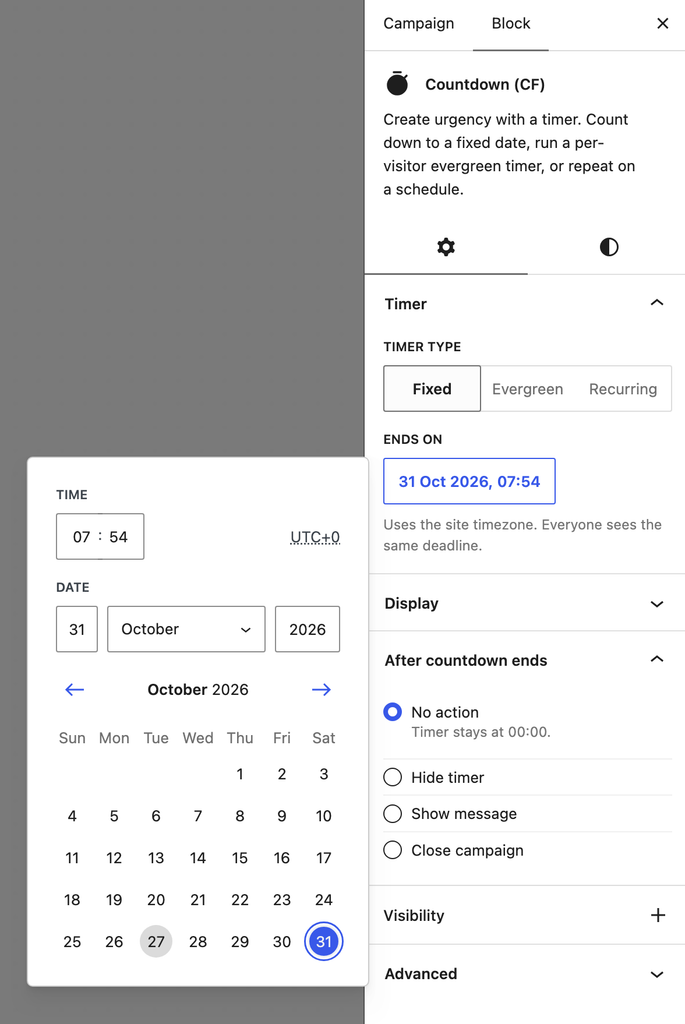
Evergreen Timer
An Evergreen timer gives every visitor their own countdown, starting from the moment they first see it. You set the Duration in days, hours, and minutes.
The start time is remembered in the visitor’s browser. If someone sees a one-hour offer, leaves, and comes back 20 minutes later, the clock has kept running, so they see 40 minutes left instead of a fresh hour. Every visitor gets the full duration, no matter when they arrive.
By default, a visitor whose timer has already ended sees it in its ended state. Turn on Restart for returning visitors if you want them to get a fresh countdown when they come back after it ended.
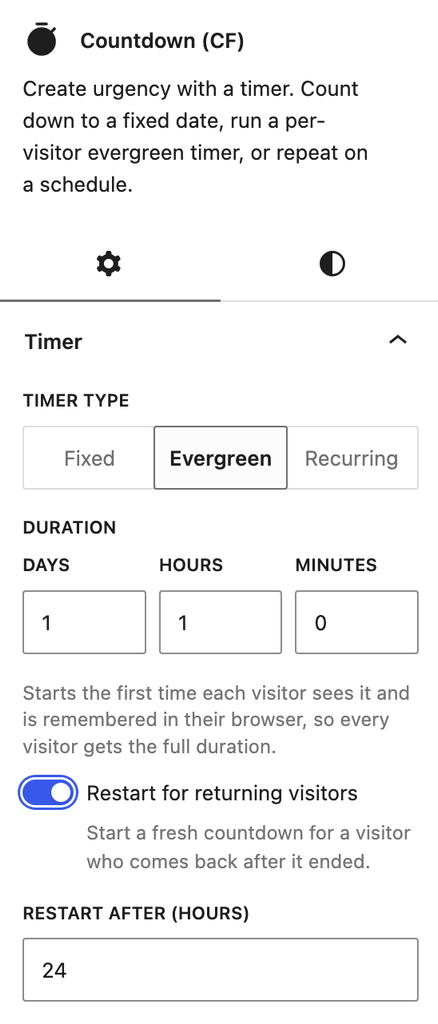
Recurring Timer
A Recurring timer runs the same countdown again and again on a schedule. It has three settings:
- First Countdown Starts: the date and time of the first run, in your site timezone.
- Each Countdown Runs For: how long each countdown lasts, in days, hours, and minutes.
- Repeat Every: how often a new countdown starts, for example every 1 day.
Between the end of one countdown and the start of the next, the timer stays in its ended state. So a 1-hour countdown that repeats every day gives you a daily one-hour flash sale.
Until you pick a start date, the block shows a reminder in the editor: “Pick a start date in the block settings.”
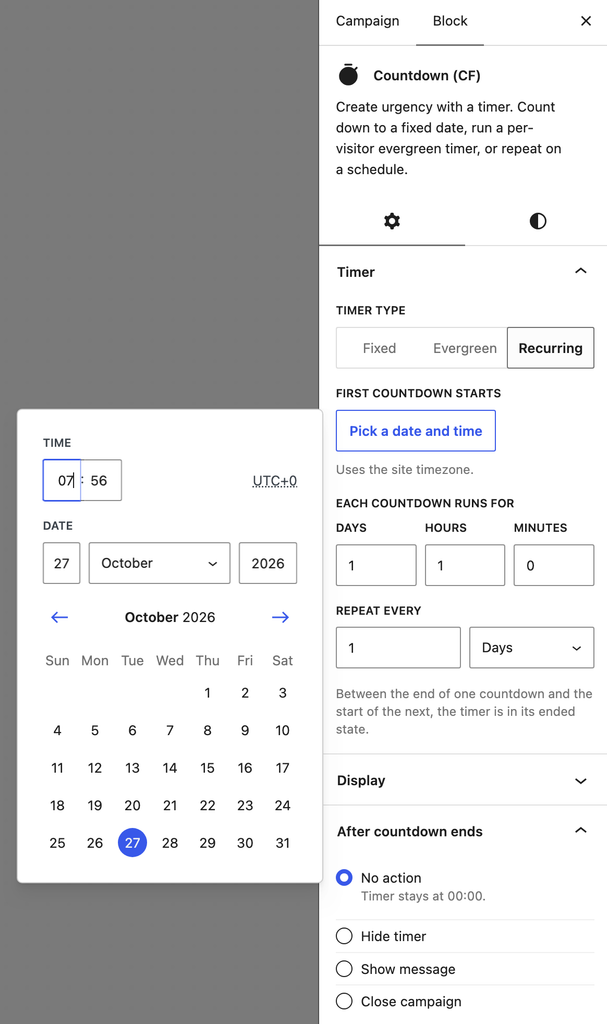
Choose Which Units To Show
The Display panel controls what the timer shows:
- Show Units: turn Days, Hours, Minutes, and Seconds on or off. A one-hour offer does not need a Days box.
- Show labels: show or hide the words under each number.
- Labels: rename Days, Hours, Minutes, and Seconds. Use “Hrs” and “Min” to save space, or translate them into your site’s language.
- Separator: put nothing, a colon, or a line between the boxes.
Decide What Happens When Time Runs Out
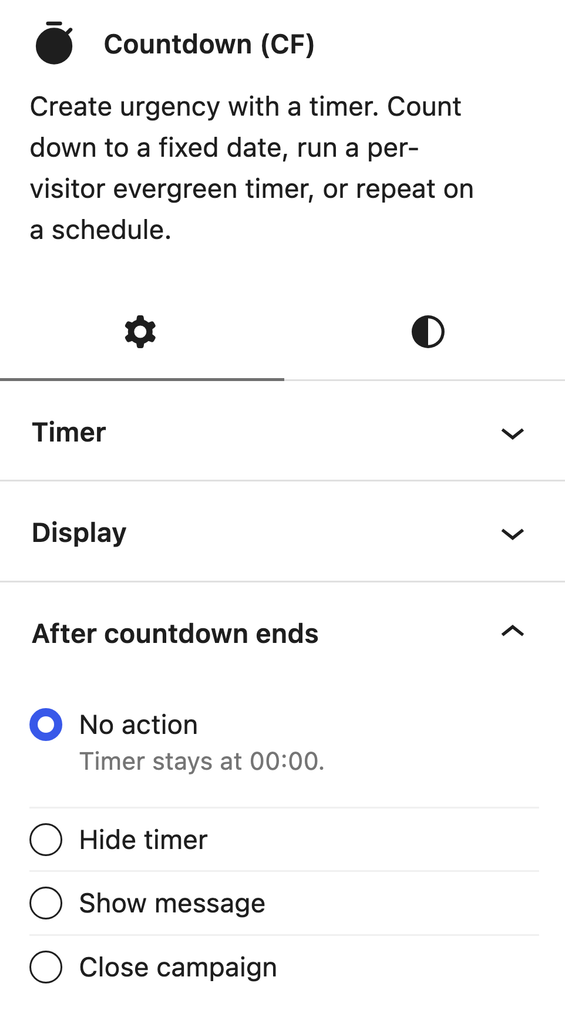
This is the part third-party countdown blocks cannot do. The After countdown ends panel gives you four choices:
| Option | What Visitors See |
|---|---|
| No action | The timer stays at 00:00. |
| Hide timer | The timer disappears, and the rest of the campaign stays. |
| Show message | A message replaces the timer. Buttons and other content stay visible. |
| Close campaign | The whole popup, slide-in, or bar closes. |
Close campaign is the one we recommend for most sales. An expired offer that keeps showing up hurts trust more than no offer at all.
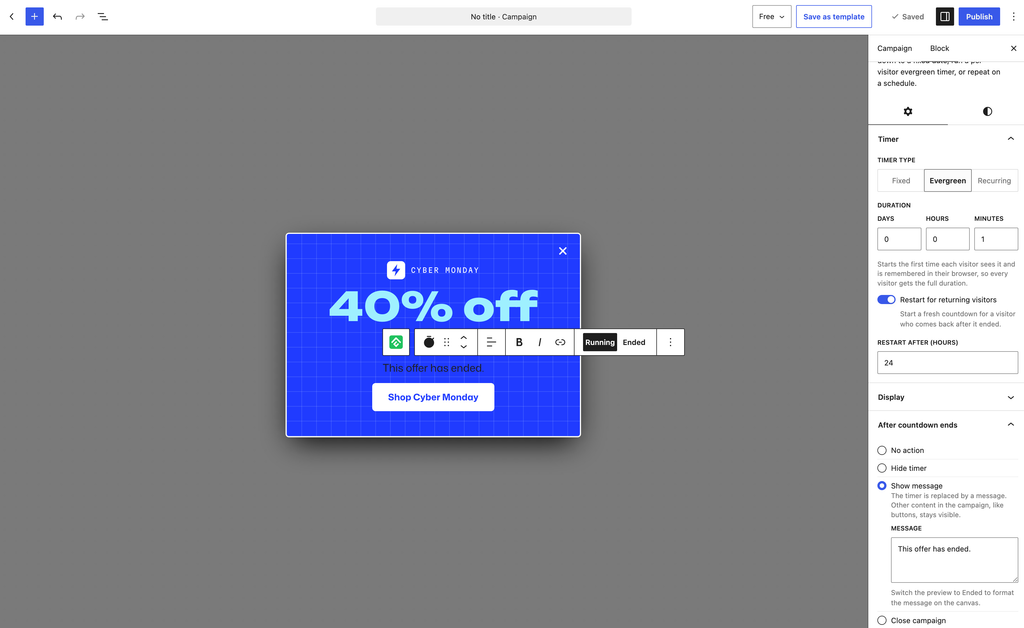
You can also preview both states while you edit. The block toolbar has a Running and Ended switch, so you can check how the campaign looks before and after the deadline without waiting for it.
Show message is useful when the campaign still has a job to do after the deadline. Type your text in the Message field (the default is “This offer has ended.”), then switch the preview to Ended to style the message right on the canvas. In a Cyber Week bar, for example, the countdown can turn into “This offer has ended.” while the “Shop today’s deal” link stays in place for the next deal.
Pick From Eight Timer Styles
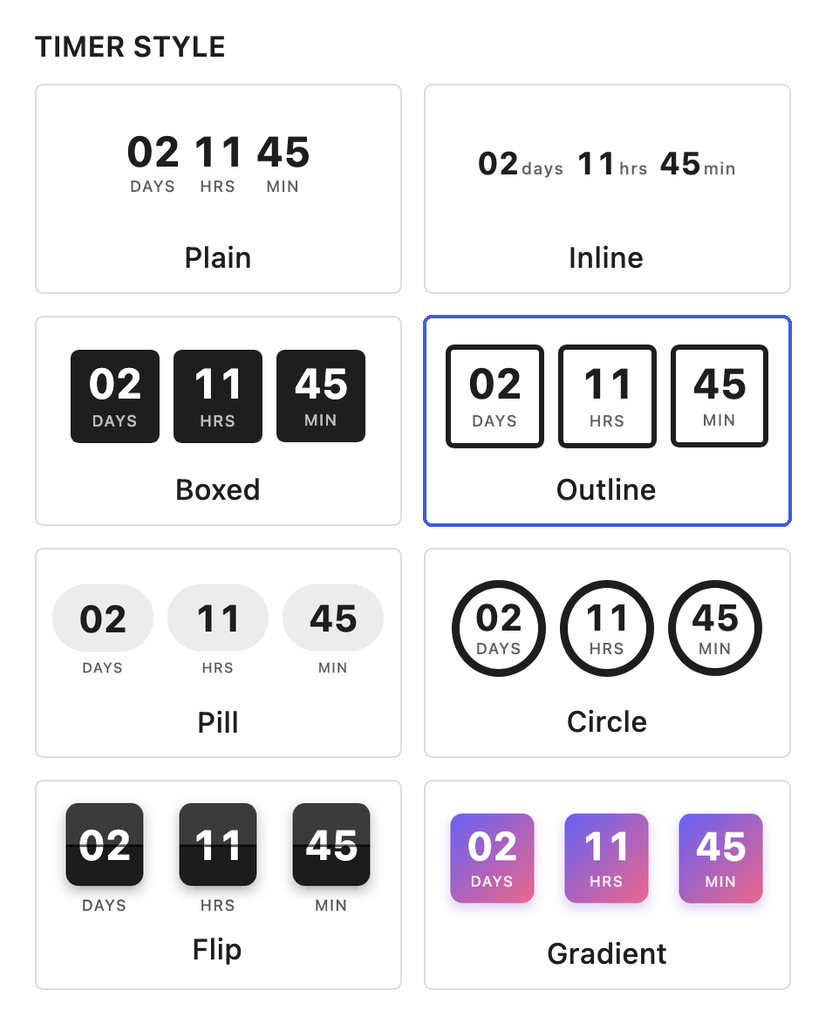
Open the Styles tab (half circle icon) and choose a Timer Style:
- Plain: numbers with small labels underneath.
- Inline: numbers and labels on one line, good for top bars.
- Boxed: each unit in a solid box.
- Outline: each unit in a bordered box.
- Pill: rounded pill shapes.
- Circle: each unit inside a circle.
- Flip: a split-flap clock look.
- Gradient: colorful gradient boxes.
Fine-Tune Typography, Colors, And Spacing
After choosing a style, you can adjust the details:
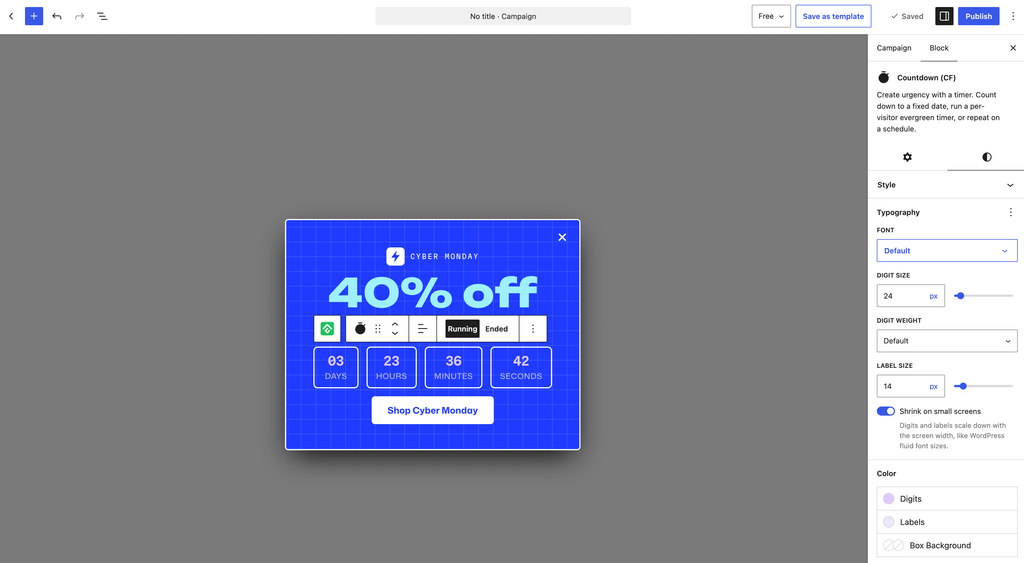
- Typography: font, digit size, digit weight, and label size.
- Shrink on small screens: on by default. Digits and labels scale down with the screen width, the same way WordPress fluid font sizes work. Your timer will not break the layout on a phone.
- Color: separate colors for digits, labels, and box background.
- Dimensions: padding, margin, box padding, and the gap between boxes.
- Border: box border and corner radius.
How To Add A Countdown (CF) Block
- Open your campaign in the editor.
- Click the + button and search for Countdown (CF).
- In the Settings tab (gear icon), choose a Timer Type: Fixed, Evergreen, or Recurring.
- Set the end date, the duration, or the schedule.
- In the Display panel, pick which units to show and edit the labels if you want.
- Under After countdown ends, choose what should happen at zero.
- Open the Styles tab (half circle icon) and pick a Timer Style, then adjust colors and sizes.
- Use the Running and Ended switch in the toolbar to check both states, then save.
Tip: Match the timer to the offer. A 15-minute Evergreen timer on a first-visit discount feels urgent. The same timer on a sale that runs all month feels fake, and visitors notice. Use Fixed for real deadlines and Evergreen only when the offer really is personal.
A Much Bigger Pattern Library
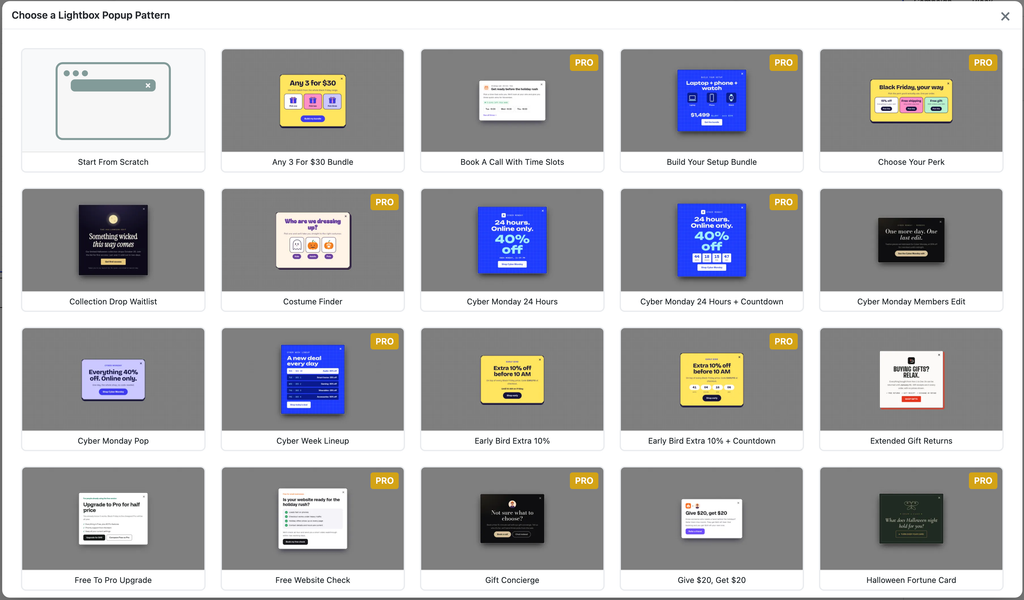
ConvertForce 1.3.0 expands the pattern library to more than 100 ready-made designs across lightbox popups, slide-ins, and bars. In 1.1 we had four designs per campaign type. Now each pattern picker holds dozens.
The timing is deliberate. Halloween, Black Friday, Cyber Monday, and the holiday rush all land in the next few weeks. Most of the new patterns are built for exactly those campaigns, so you can pick one, change the words and the discount, and publish.
What’s In The Library
| Campaign Type | Patterns | A Few Examples |
|---|---|---|
| Lightbox Popup | 40+ | Any 3 For $30 Bundle, Shop By Budget, Scratch Card Reveal, Early Bird Extra 10%, Three-Tier Pricing |
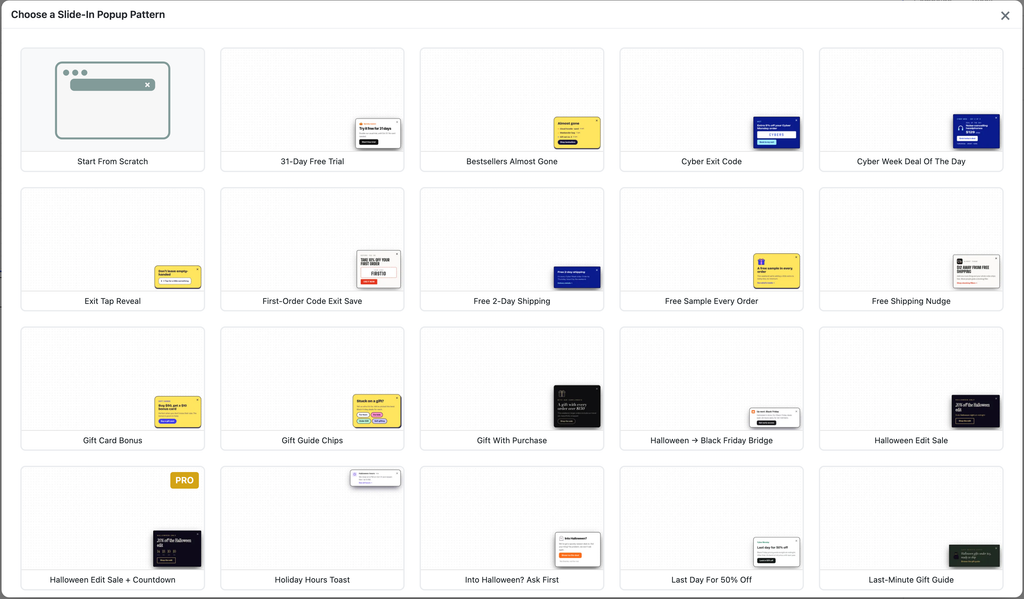
| Slide-In | 40+ | Free Shipping Nudge, Price Drop Alert, Gift With Purchase, Pay In 4, Testimonial + Deal |
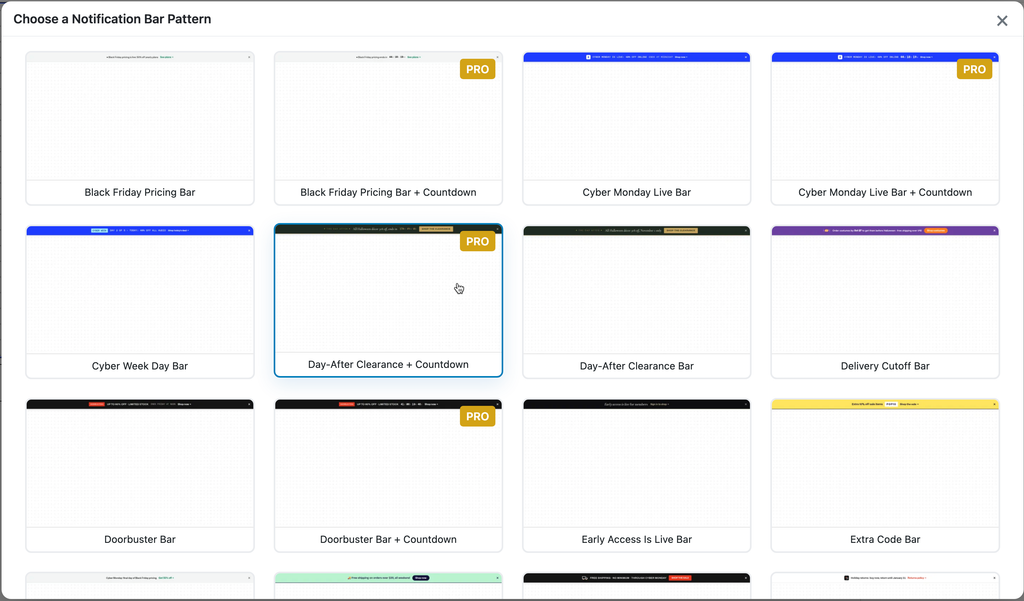
| Bar | 30+ | Black Friday Ends Bar, Doorbuster Bar, Delivery Cutoff Bar, Holiday Returns Bar, Cookie Bar |
Patterns For Every Kind Of Campaign
The new patterns are not only sale banners. They cover the situations store owners, software sellers, and service businesses actually run into:
- Seasonal sales: Black Friday, Cyber Monday, Cyber Week, Halloween, and New Year designs, plus a Halloween to Black Friday bridge for the gap between them.
- Shipping and holidays: free shipping offers, delivery cutoff reminders, holiday returns, holiday hours, and an office closed notice.
- Bundles and upsells: Any 3 For $30, Build Your Setup Bundle, Pick-Three Bundle, Spend More Save More, and Gift With Purchase.
- Software and subscriptions: Lifetime Deal, Three-Tier Pricing, Team Licenses, Yearly Plan Deal, Yearly Vs Monthly Savings, and Free To Pro Upgrade.
- Service businesses: Service Package Card, Book A Call With Time Slots, and Free Website Check.
- Leaving visitors: several “Exit Save” designs, like First-Order Code Exit Save and Price Saved Exit Save, written for visitors who are about to leave. Pair them with the Exit Intent trigger in ConvertForce Pro.
- Interactive designs: Scratch Card Reveal, Trick Or Treat Reveal, Exit Tap Reveal, Shop By Budget, Costume Finder, and Gift Guide Chips give visitors something to click before they see the offer.
Countdown Versions Of Popular Patterns
Many patterns now come in two versions, for example Doorbuster Bar and Doorbuster Bar + Countdown, or Lifetime Deal and Lifetime Deal + Countdown. The countdown version is the same design with a Countdown (CF) block already placed and styled to match. Set the end date and it is ready.
Free And Pro Patterns
Most patterns work in the free version of ConvertForce. Patterns marked PRO in the picker need ConvertForce Pro, including the countdown versions, since they use the Countdown (CF) block.
How To Use A Pattern
- Create a new campaign and choose your campaign type (Lightbox Popup, Slide-In, or Bar).
- The pattern picker opens automatically.
- Click the pattern you want, or choose Start From Scratch.
- Edit the text, colors, images, and buttons like any other block content.
- Set your display conditions and triggers, then publish.
Tip: Patterns are a starting point, not a finished campaign. Change the discount, the dates, and the coupon code before you publish. A popup that still says “BOO30” in December looks careless.
Lighter And More Stable
Pro scripts now load only on pages that contain a campaign. Pages without a popup, slide-in, or bar skip the ConvertForce Pro code entirely. Less code for the browser to download means faster pages, which is why performance has been part of ConvertForce from day one.
Top bars no longer cause layout shift. Static and sticky top bars are already in place when the page appears, instead of showing up a moment later and pushing the content down. That jump is called layout shift, and Google measures it as part of Core Web Vitals.
Slide-ins no longer trap keyboard focus. A slide-in sits in a corner and should not block the page. Keyboard and screen reader users can now move between a slide-in and the rest of the page freely.
The Escape key always closes a lightbox popup. Keyboard users always have a way out.
Floating content stays inside the campaign. Images or elements set to float left or right inside a static bar or slide-in no longer spill outside the campaign area.
Freemius SDK updated to 2.13.5. Freemius handles licensing and updates for ConvertForce Pro. Keeping it current keeps license checks and updates running smoothly.
How To Update To ConvertForce 1.3.0
Go to Dashboard > Updates or Plugins and update ConvertForce. Pro users should update the free plugin first, then the Pro add-on. The Countdown (CF) block appears in the block inserter once ConvertForce Pro is updated.
Clear your page cache afterwards. The script loading and top bar changes affect how pages are built, so a cached page can hide them.
What’s Next
Countdown (CF) is the second block built just for ConvertForce, after Text (CF). We plan to keep adding blocks where a campaign needs something that general-purpose blocks cannot do well.
If you build a countdown campaign for Black Friday, we would love to see it. And if a setting feels missing or awkward, tell us in the support forum. Requests shape these releases directly.
Frequently Asked Questions
Is the Countdown (CF) block free?
No. The Countdown (CF) block is part of ConvertForce Pro. The free version can still use countdown blocks from other plugins inside a campaign, but those cannot close the campaign when the timer ends.
What is the difference between a fixed and an evergreen countdown?
A fixed countdown ends at the same date and time for every visitor. An evergreen countdown starts when each visitor first sees it and runs for a set duration, so every visitor gets their own deadline.
Does the evergreen timer restart when a visitor reloads the page?
No. The start time is remembered in the visitor’s browser, so the countdown continues from where it should be. You can turn on Restart for returning visitors to give a fresh countdown to someone who returns after their timer ended.
Can a popup close automatically when the countdown ends?
Yes. Set After countdown ends to Close campaign, and the popup, slide-in, or bar closes when the timer reaches zero.
Can I run a daily deal with the same timer?
Yes. Use the Recurring timer type. Set when the first countdown starts, how long each one runs, and how often it repeats.
Which timezone does the countdown use?
Fixed and Recurring timers use your WordPress site timezone. Evergreen timers count from the moment each visitor first sees the campaign.
How many timer styles are there?
Eight: Plain, Inline, Boxed, Outline, Pill, Circle, Flip, and Gradient.
Will the countdown fit on mobile screens?
Yes. Shrink on small screens is turned on by default, so digits and labels scale down with the screen width.
How many patterns does ConvertForce include?
More than 100, split across lightbox popups, slide-ins, and bars. Each campaign type has its own pattern picker that opens when you create a new campaign.
Are the new patterns free?
Most of them are. Patterns marked PRO in the picker, including the countdown versions, need ConvertForce Pro.
Do I have to use a pattern?
No. Every pattern picker includes a Start From Scratch option.
Full ConvertForce 1.3.0 Changelog
- [PRO] NEW: Countdown block.
- [PRO] IMPROVE: Pro scripts only load on pages that contain a campaign.
- IMPROVE: Static and sticky top bars now don’t cause layout shift.
- IMPROVE: Accessibility: slide-ins causing focus trap.
- FIX: Floating content inside static bars and slide-ins no longer overflows the campaign area.
- FIX: Escape key always closes the lightbox.
- FIX: Updated Freemius to v2.13.5.
The complete version history is on the ConvertForce changelog at WordPress.org.
Leave a Reply