
An announcement bar is one of the easiest ways to highlight important messages on your website. Whether you want to promote a discount, announce a product update, or guide visitors toward a special offer, an announcement bar ensures your message stays visible.
Unlike popups that interrupt visitors, an announcement bar sits at the top or bottom of the page and remains visible while users browse your site.
Many websites use announcement bars to:
-
Promote sales or limited-time offers
-
Announce new features or updates
-
Highlight important notices
-
Promote newsletter signups
-
Guide visitors toward key pages
In this guide, you’ll learn how to add an announcement bar in WordPress step-by-step using the ConvertForce plugin.
What is an Announcement Bar?
An announcement bar is a sticky notification bar that appears at the top or bottom of a webpage to display important messages.
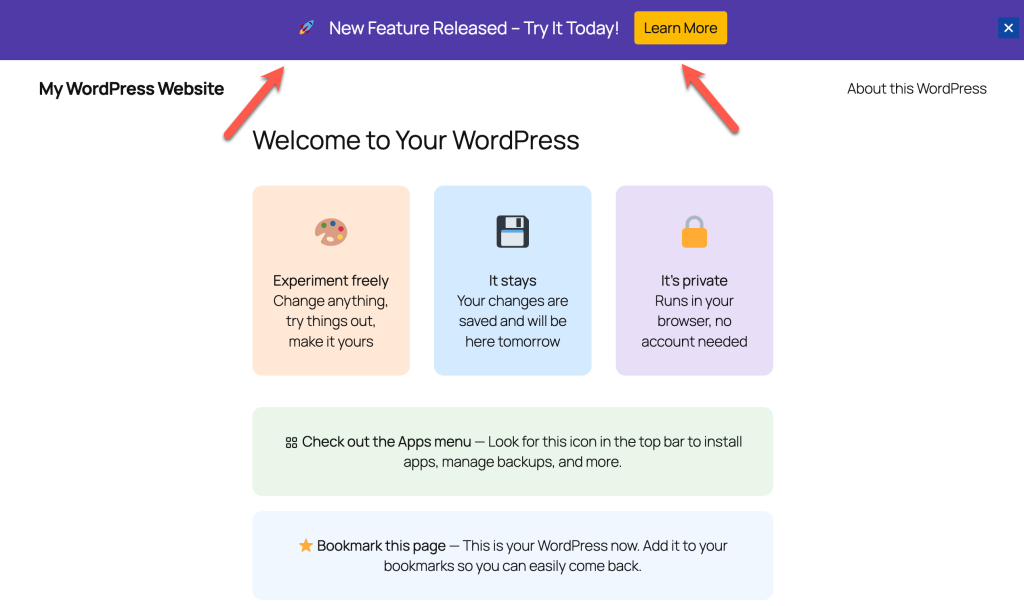
It usually contains:
- A short announcement message
- A call-to-action button
- A close icon
Because the bar stays visible while visitors scroll, it helps ensure that your message gets noticed.
Common uses include:
- Limited-time promotions
- Product launches
- Shipping announcements
- Website updates
- New blog content
Why Use an Announcement Bar in WordPress?
Announcement bars are widely used because they are simple yet effective.
High Visibility
The bar stays visible while visitors scroll through the page.
Non-Disruptive
Unlike popups, announcement bars don’t interrupt the browsing experience.
Perfect for Promotions
They are ideal for highlighting important messages like discounts or updates.
Increase Engagement
A clear call-to-action can encourage users to click and explore your offers.
Method: Add an Announcement Bar Using ConvertForce
The easiest way to add an announcement bar in WordPress is by using ConvertForce.
ConvertForce is a block-based conversion plugin that allows you to create:
- Notification bars
- Popups
- Slide-ins
Because the plugin works with the WordPress block editor, you can design campaigns using familiar Gutenberg blocks.
Step 1: Install the ConvertForce Plugin
First, install and activate the plugin.
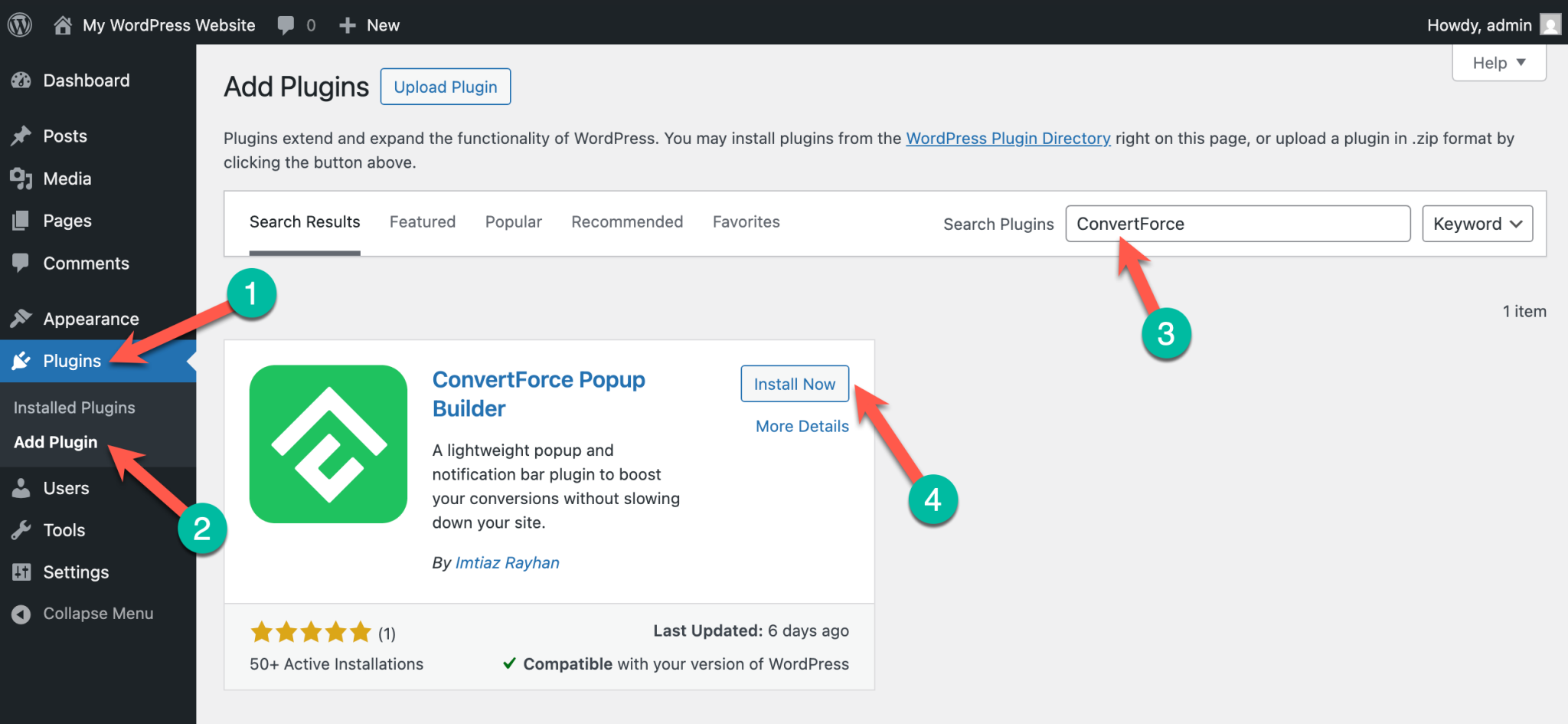
- Go to Plugins → Add New
- Search for ConvertForce
- Click Install Now
- Activate the plugin
Step 2: Create a New Campaign
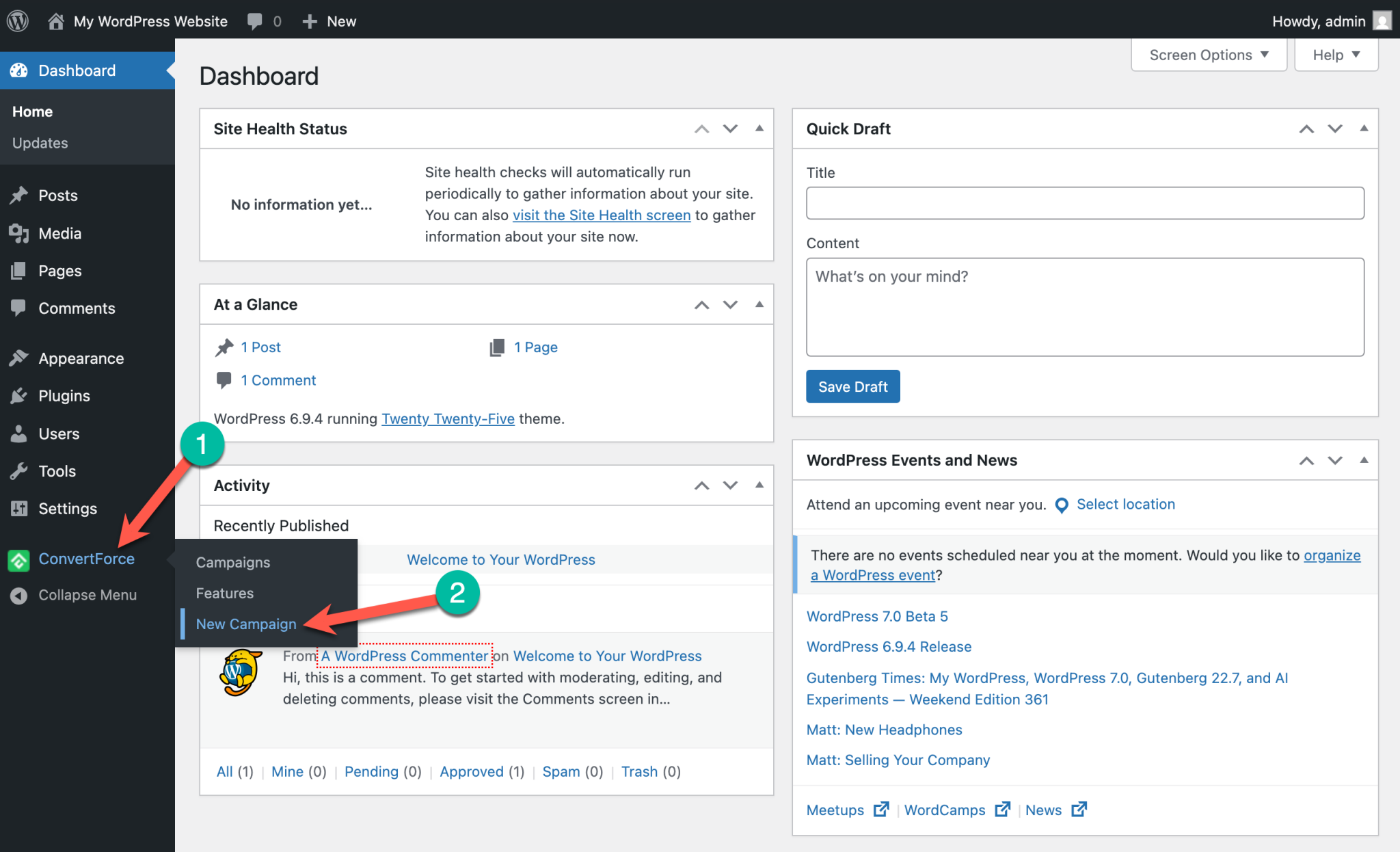
After activating the plugin, create a new campaign.
- Go to ConvertForce → New Campaign
- This will open the campaign builder where you can design your announcement bar.
Step 3: Choose the Display Type
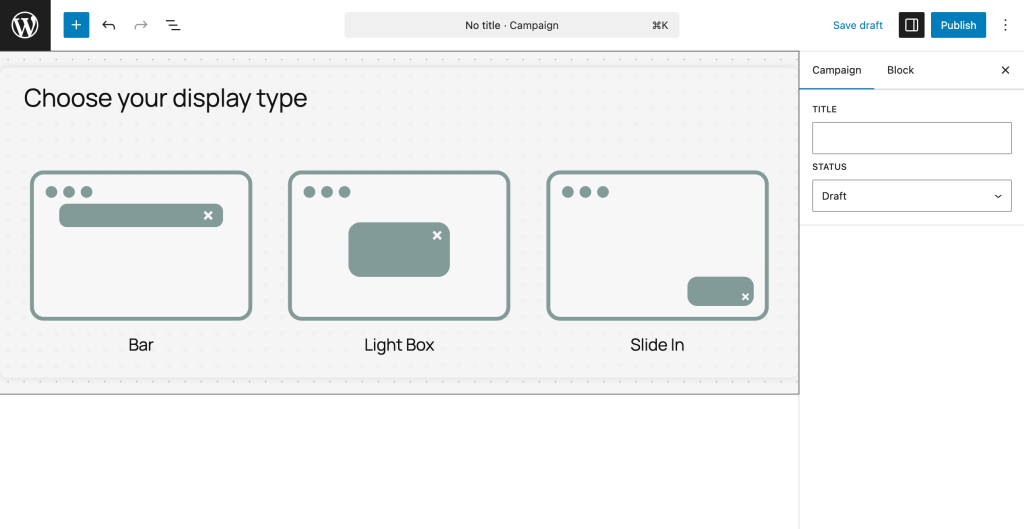
ConvertForce allows you to create different types of campaigns:
- Bar
- Light Box
- Slide In
To create an announcement bar, select Bar.
Step 4: Choose an Announcement Bar Pattern
Next, choose a pre-designed pattern for your bar.
ConvertForce includes several patterns such as:
- Cookie bar
- Sale notification bar
- Free shipping bar
- New year sale bar
You can also choose Start From Scratch to design your own bar.
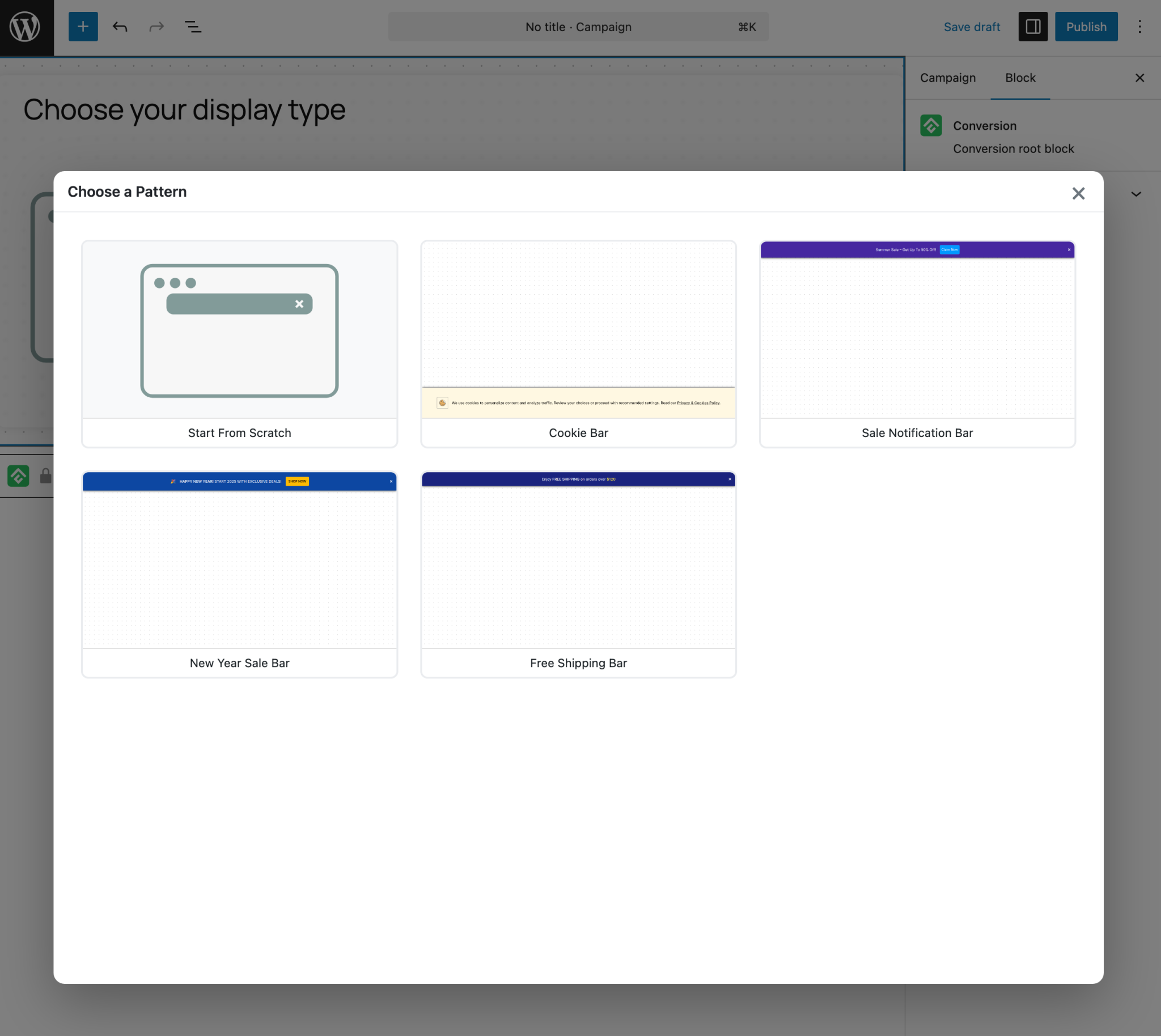
For the sake of this tutorial, we will choose the ‘New Year Sale’ bar.
Step 5: Customize the Announcement Bar
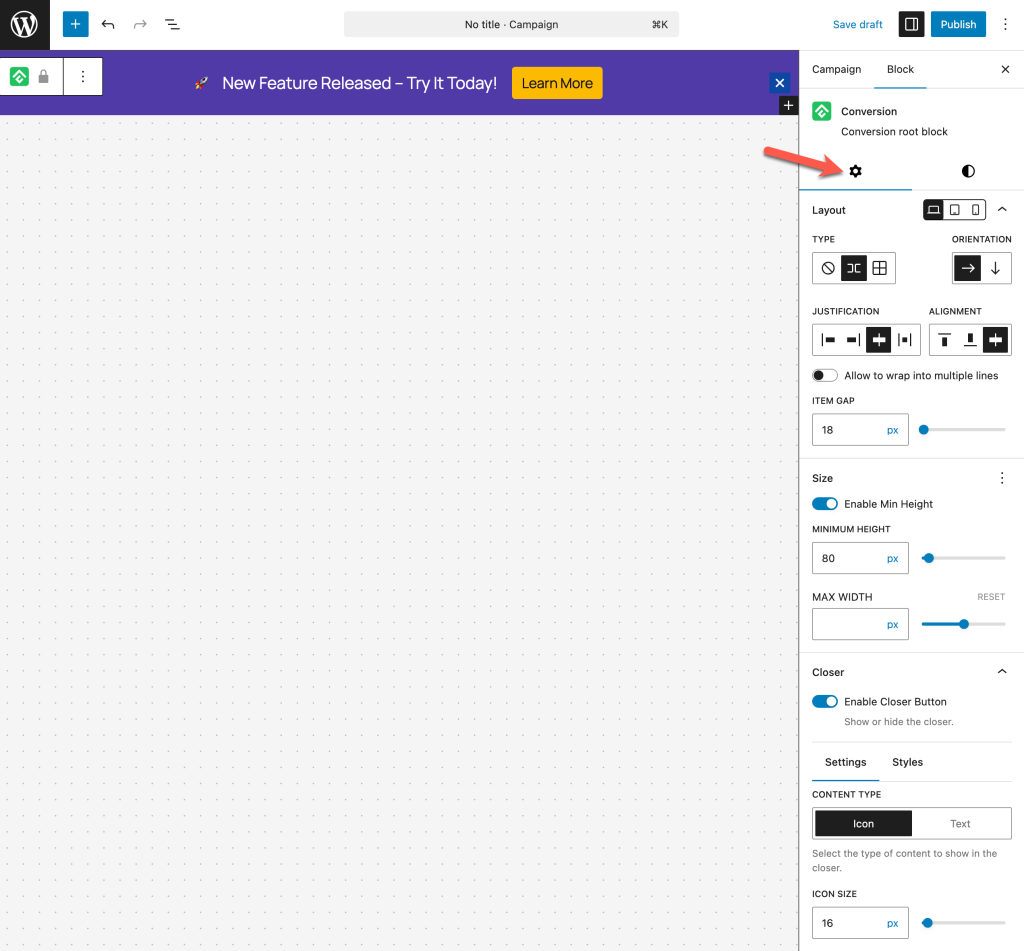
Now you can design and style your bar.
From the Settings tab, you can change layout type, orientation, justification, alignment, item gap, minimum height, max width, and close button options.
From the Styles tab, you can change background style, box shadow, padding & margin, and border & radius.
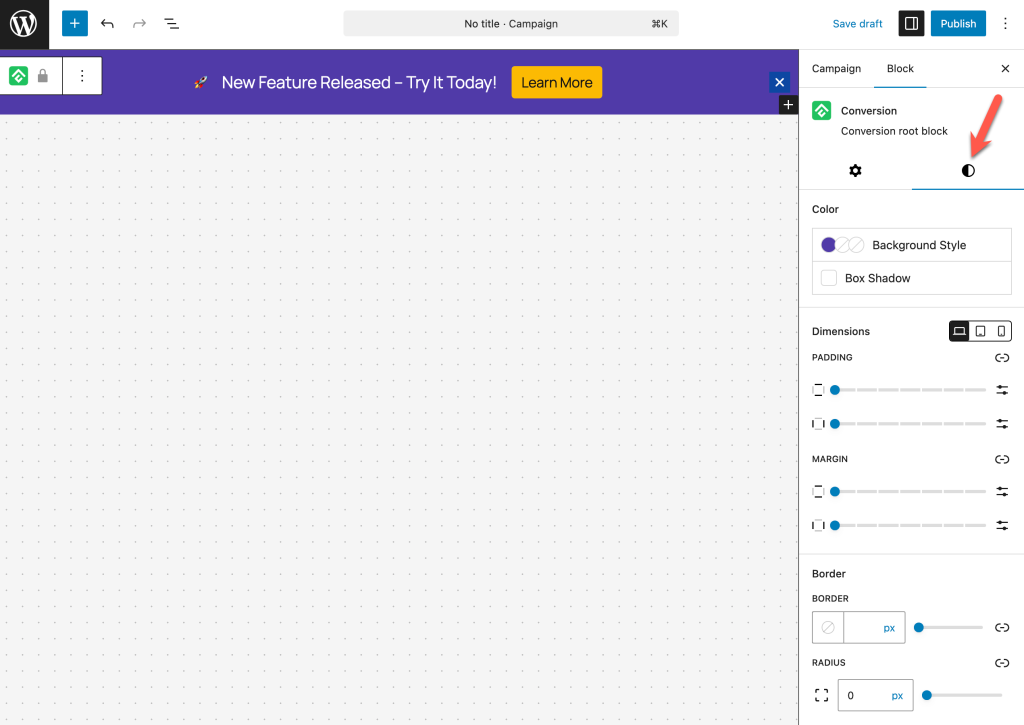
You can also change text color, button styles, and icons by clicking on each block.
Example announcement message: 🚀 New Feature Released – Try It Today!
Example CTA button: Learn More
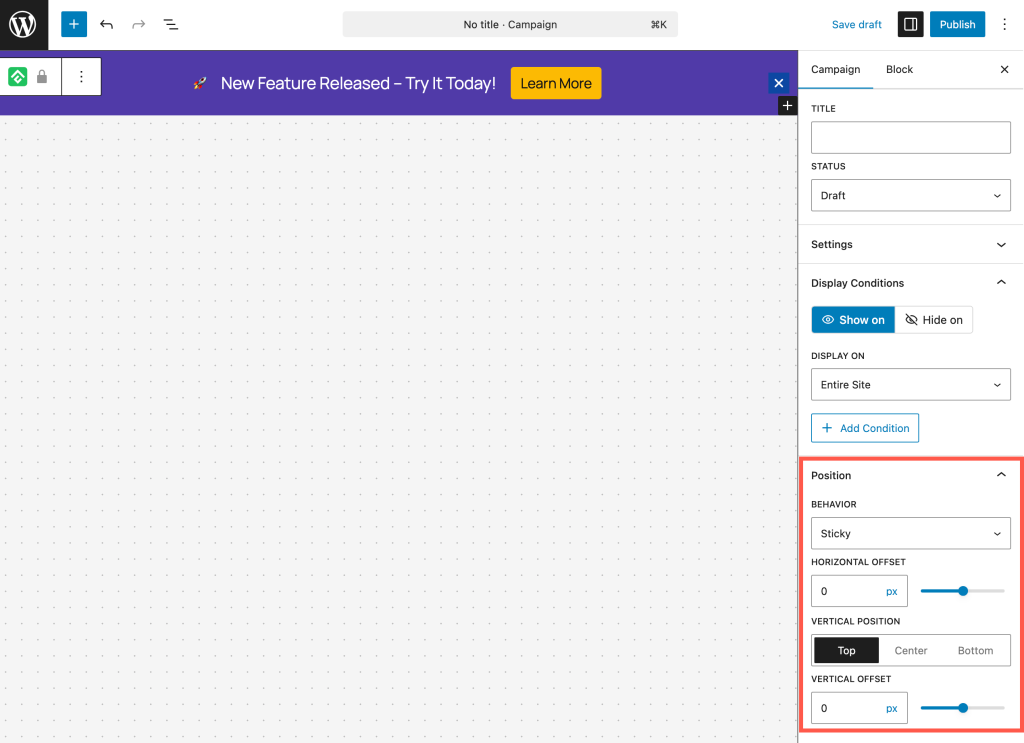
Step 6: Set Display Conditions and Position the Announcement Bar
Now configure on which pages the bar will appear from the Campaign tab. You can show the bar on entire site (default option). You can also show or hide the bar on particular posts, pages, categories, etc.
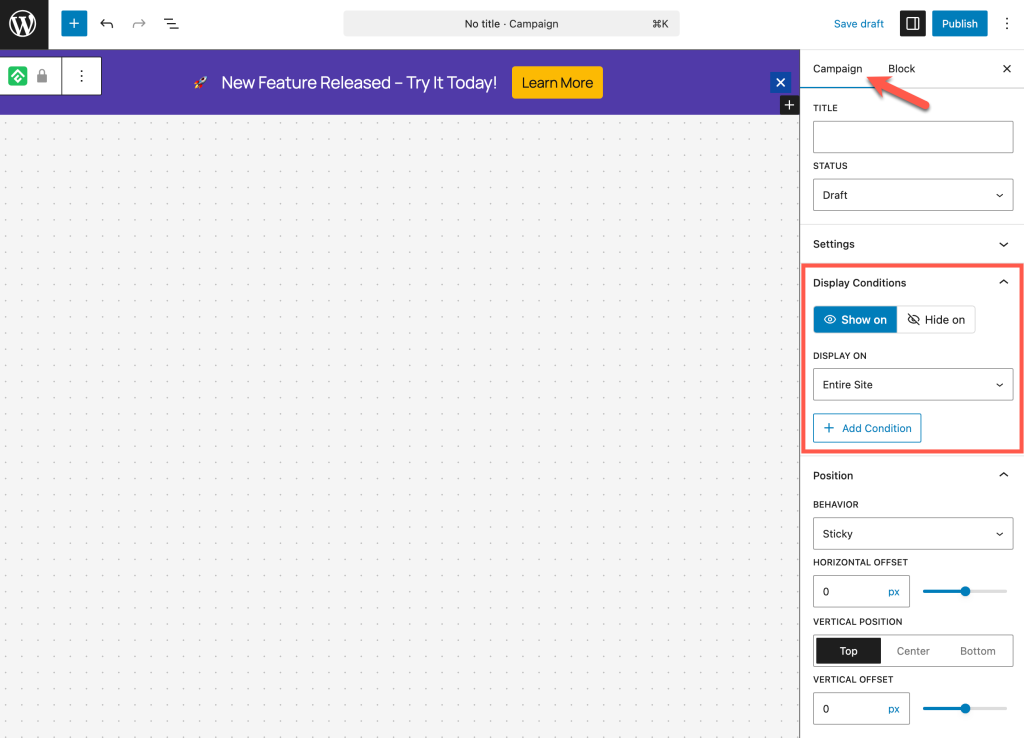
You can place the announcement bar at top or bottom of the page. You can change the behavior and position of the bar from the Position section.
Step 7: Publish the Announcement Bar
Once your design is ready, give a title of the bar and publish the campaign.
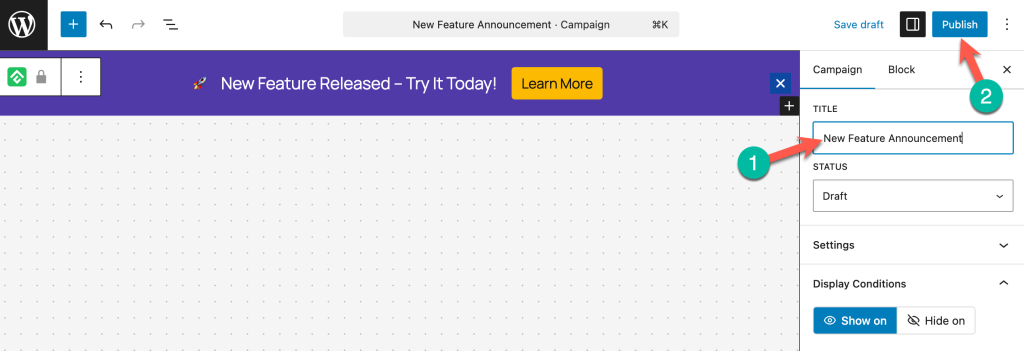
Your announcement bar will now appear on your website.
Best Practices for Announcement Bars
Follow these tips to get better results from your announcement bars.
Keep the Message Short
Visitors should understand the message instantly.
Examples:
- Free Shipping on Orders Over $50
- Get 25% Off Today
- Try Our New Feature
Use a Clear CTA Button
Your button should clearly tell visitors what to do.
Examples:
- Learn More
- Get the Deal
- Start Free Trial
- Shop Now
Use Eye-Catching Colors
Make sure your bar stands out from the rest of the page.
Example:
Dark background → bright CTA button.
Use Announcement Bars Strategically
Announcement bars work best for:
- Promotions
- Product launches
- Feature announcements
- Website updates
Avoid showing too many announcements at once.
Conclusion
Announcement bars are a simple yet powerful way to highlight important messages on your website.
With ConvertForce, you can easily create announcement bars using the WordPress block editor. In just a few minutes, you can design a bar that promotes offers, announces updates, and drives more engagement across your website.
If you’re looking for a flexible way to add notification bars, popups, and slide-ins, ConvertForce provides a beginner-friendly solution that works seamlessly with Gutenberg.
Leave a Reply